Correct RAM Slot Order for Dual Channel on 4-Slot Boards
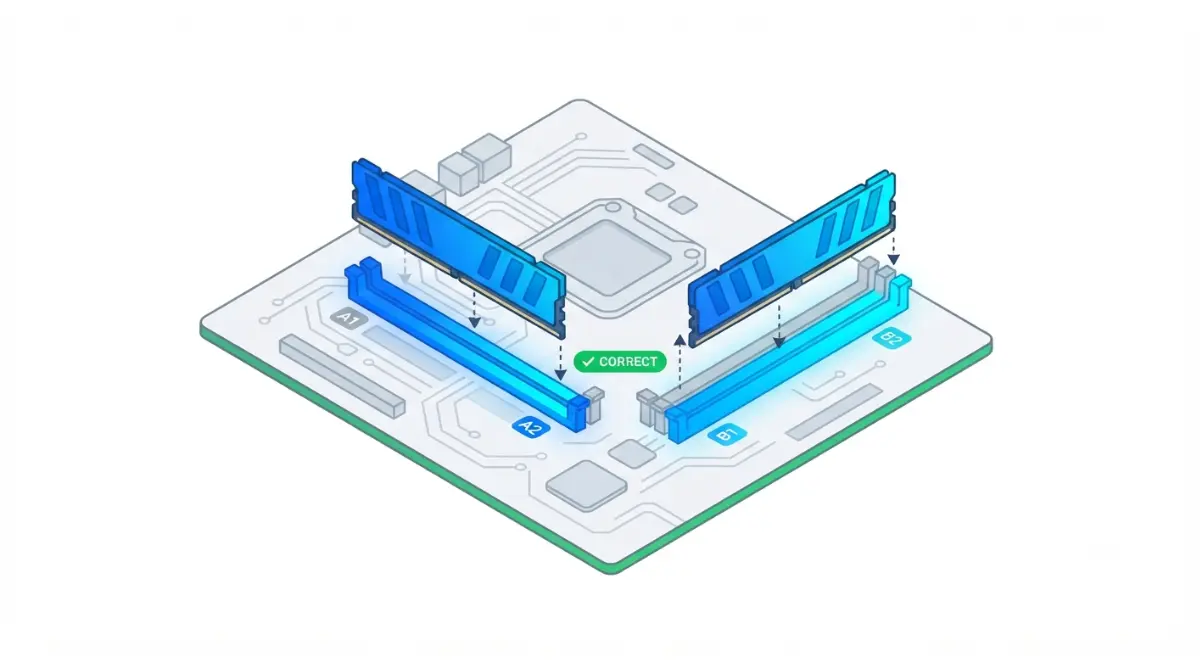
Table of Contents
Two sticks of RAM? Start with slots A2 and B2
On most four-slot motherboards, a two-stick kit goes in slots A2 and B2, usually the second and fourth slots counting out from the CPU.
The short answer for a four-slot board
ASUS and MSI both list A2 plus B2 for two modules in their official installation guidance. Some forum threads say A1 and B1 instead, and the section on why boards prefer A2 and B2 explains the difference. Your motherboard manual has the final word, because MSI notes that installation can vary by board.
Where to jump if you have one, four, or two slots
- One stick, or a two-slot Mini-ITX board: see “One stick, mixed kits, and two-slot boards.”
- Four sticks: see “Should you fill all four slots instead?”
- Already built and unsure it worked: go to “Not running in dual channel?”
Slot order is one of several checks in our full motherboard compatibility checklist.
What A1, A2, B1 and B2 actually mean
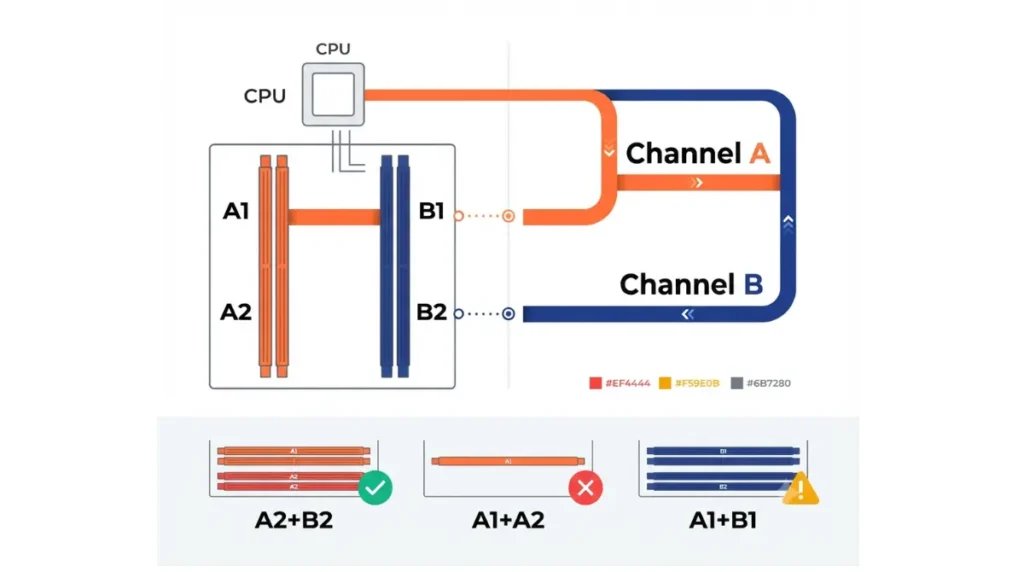
Each slot label names a memory channel and a position on that channel.
The letter is the channel, the number is the slot
A1 and A2 share channel A, and B1 and B2 share channel B. The number marks the slot’s position on its channel. MSI prints these as DIMMA2, ASUS as DIMM_A2. On most boards A1 sits closest to the CPU, but read the printed labels rather than counting.
Why A1 and A2 together means single channel
Two sticks in A1 and A2 both sit on channel A. Channel B stays empty, so the memory runs in single-channel mode.
🔍 Why It Works: Dual channel gives the CPU’s memory controller two separate paths to your RAM instead of one, so it can move more data at once. That only happens when each channel holds a stick.
Don’t trust slot colors alone
Color schemes differ between brands and board generations. A color pattern from someone else’s board, or from a video, may not match yours, so the printed label is the reliable guide.
Why boards want A2 and B2 instead of A1 and B1
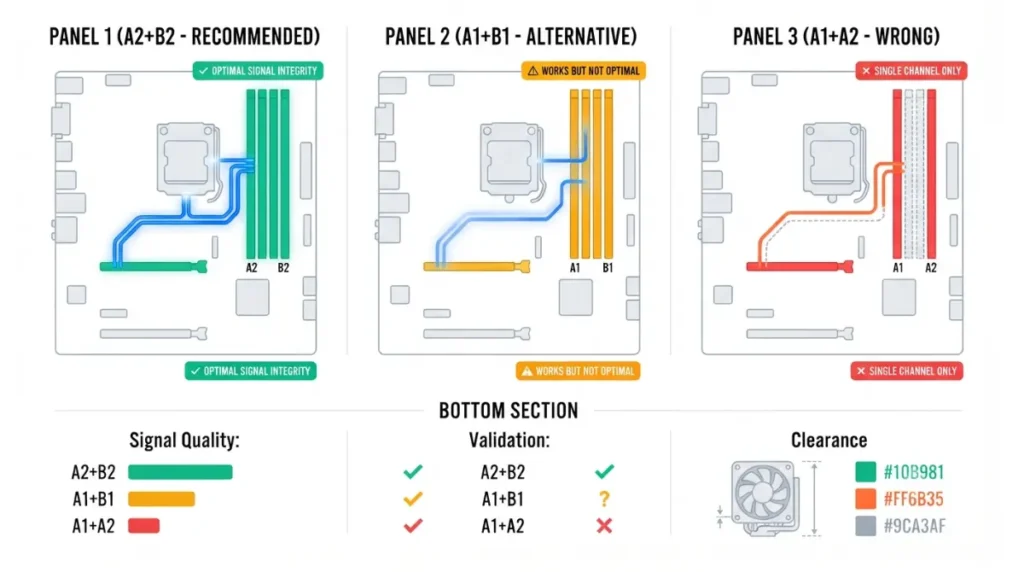
Both pairs span two channels, so the difference is about board design, not channel count.
What ASUS and MSI recommend
| Slot pair | Channels used | Manufacturer guidance | Key Detail |
|---|---|---|---|
| A2 + B2 | A and B | Listed two-stick layout (ASUS, MSI) | Default choice |
| A1 + B1 | A and B | Not the listed two-stick layout | Dual channel, but a fallback |
| A1 + A2 | A only | Not recommended | Single channel |
| B1 + B2 | B only | Not recommended | Single channel |
Source: ASUS and MSI official memory installation guides, as of September 2026.
The wiring reason, in plain terms
Memory slots connect to the CPU through traces printed on the board, and each maker validates specific population layouts for its design. The recommended pair is the layout the board was designed and validated for. A2 and B2 also leave more room beside a large CPU cooler.
Is A1 and B1 still dual channel?
Yes. One stick sits on each channel. It just isn’t the layout in ASUS’s memory installation guide, so use it only when your manual says to.
How to install two RAM sticks in the right slots
Installing a kit takes a few minutes once you know the slots.
Find your board’s memory page in the manual
MSI’s guide points to the “Installing DDR5 Memory” section of each manual. Check the diagram there before touching the board.
Seat each stick until the clips lock
- Shut down, switch off the power supply, and unplug the power cord.
- Open the retention clips on A2 and B2.
- Line up the notch on the stick with the key in the slot.
- Press straight down with firm, even pressure until the clips lock.
These steps follow MSI’s memory installation steps.
Enable XMP or EXPO only after it boots
Boot once at default settings and confirm the BIOS shows your full capacity. Then enable your kit’s XMP or EXPO profile, after confirming XMP and EXPO support on your board’s QVL.
Should you fill all four slots instead?
Four sticks still run in dual channel, but they put two sticks on each channel, and official speed limits drop.
Official speeds: two sticks vs four
| Sticks | Slots to use | Channels active | AMD Ryzen 9 9950X official max | Key Detail |
|---|---|---|---|---|
| 1 | A2 | One | Not listed | Single channel |
| 2 | A2 + B2 | Two | DDR5-5600 | One stick per channel |
| 4 | All four | Two | DDR5-3600 | Two sticks per channel |
Source: ASUS and MSI installation guides; AMD’s official Ryzen 9000 memory speed limits (same limits for single- and dual-rank sticks), as of September 2026.
📊 Spec Check: Intel’s Core Ultra 200S (Series 2) maximum speeds apply to one stick per channel, up to DDR5-6400 with CUDIMMs. Intel adds that more sticks per channel may lower that maximum, per Intel’s Series 2 product brief.
When four sticks still make sense
Four sticks fit builds that need more total capacity than two sticks provide, and Intel notes its maximum capacity needs two sticks per channel. For speed, two larger sticks are the safer route. See why four sticks of RAM often run slower.
One stick, mixed kits, and two-slot boards
A few setups need a different approach from the standard two-stick layout.
Running a single stick for now
ASUS and MSI both put a single stick in slot A2. It runs in single channel until a second stick goes in B2.
Adding a second kit later
MSI’s manuals say dual-channel stability needs sticks of the same type, number, and density. A matched two-stick kit is safer than pairing separately bought sticks. Check your board’s memory support list either way.
Mini-ITX boards with only two slots
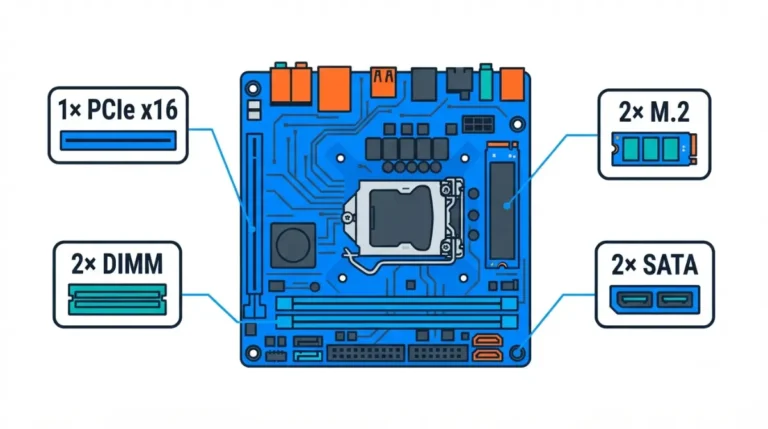
On a two-slot board, filling both slots is the normal two-stick setup.
🧩 Compatibility Check: Confirm in your manual’s memory diagram that each of the two slots sits on its own channel.
Not running in dual channel? Check these first
Most slot problems come down to placement or seating, so start with the simplest check.
Confirm capacity in the BIOS
ASUS and MSI both suggest checking memory status in the BIOS right after install. The total should match your full kit.
Check slots used in Windows
Task Manager’s Memory page shows “Slots used,” which confirms both sticks are detected. It doesn’t report channel mode, so treat it as a detection check only.
Reseat, test one stick in A2, check BIOS version
If a stick isn’t detected, reseat it until the clips lock. Then test each stick alone in A2 to find a faulty stick or slot. A newer kit may also need a firmware update, so check whether your BIOS version supports your hardware.
✅ Do This: If a slot never detects any known-good stick, contact your motherboard maker’s support. Ask whether the slot fault is covered under warranty.
RAM slot order for dual channel: quick answers
1. Should RAM go in slots 1 and 3 or 2 and 4?
For dual channel on most four-slot boards, two sticks go in slots 2 and 4, labeled A2 and B2. Confirm with your manual’s printed labels.
2. Is A1 and B1 still dual channel?
Yes, A1 and B1 put one stick on each channel. ASUS and MSI still list A2 and B2 as the two-stick layout.
3. Why doesn’t A1 and A2 work for dual channel?
A1 and A2 both sit on channel A, leaving channel B empty, so the memory runs in single-channel mode instead.
4. Which slot should one RAM stick go in?
ASUS and MSI both recommend slot A2 for a single stick. It runs in single channel until a second stick goes in B2.
5. Does RAM slot color matter for dual channel?
Not reliably. Color schemes differ between brands and board generations, so follow the printed A1, A2, B1 and B2 labels instead.
6. Are four sticks of RAM slower than two?
Often, by official spec. AMD lists DDR5-5600 for two sticks and DDR5-3600 for four on the Ryzen 9 9950X.
7. How do I check RAM is in dual channel?
Confirm full capacity in the BIOS, check both sticks sit in A2 and B2, and treat Task Manager’s slot count as detection only.
8. Can I mix two RAM kits for dual channel?
It’s risky. MSI’s manuals say dual-channel stability needs sticks of the same type, number and density, so a matched kit is safer.
9. Which slots do I use on a two-slot Mini-ITX board?
For dual channel, fill both slots, then confirm in the manual’s memory diagram that each slot sits on its own channel.
10 .When should I enable XMP or EXPO?
After the PC boots at default settings and the BIOS shows full capacity, enable your kit’s XMP or EXPO profile.
Get the slots right, then check the rest of your build
Two sticks go in A2 and B2 unless your manual says otherwise. Verify full capacity in the BIOS before enabling XMP or EXPO. Before buying a kit, check whether your RAM is compatible with your motherboard. Every recommendation here traces to manufacturer documentation, not our own testing.