Check RAM compatibility with your motherboard the correct way
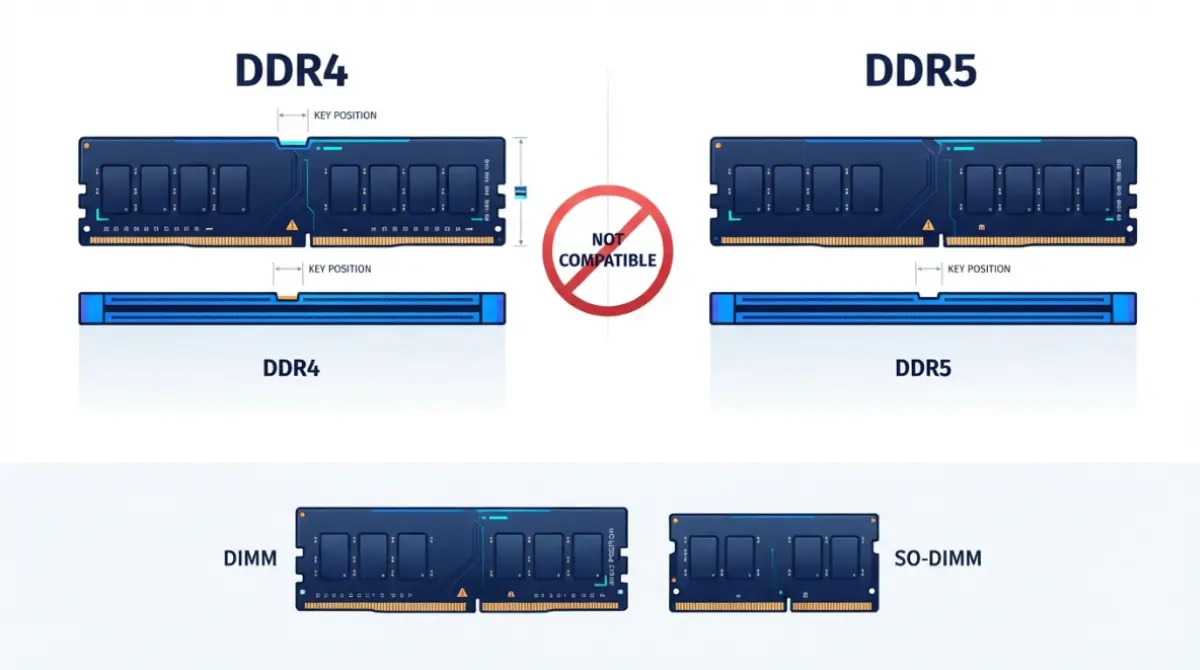
Table of Contents
What actually decides whether RAM works with your board
Four things decide RAM compatibility with a motherboard, and only the first is the DDR generation most guides stop at. Buying for a new build? Work through all four before you order. Already installed and the machine won’t post, or the memory kit is running slower than the box promised? Sections six and seven are yours.
| Gate | What to check | Where to check it | What failure looks like |
|---|---|---|---|
| 1. Type and fit | DDR generation, DIMM or SO-DIMM, module subtype | Board spec page, “Memory” row; CPU spec page, “System Memory Type” | Module won’t seat, or nothing appears on screen |
| 2. Capacity and slots | Slot count, maximum total, maximum per module | Board spec page and manual | Capacity ignored, or no post |
| 3. Speed | The processor’s published maximum for your module count | CPU spec page, memory section | Kit boots well below its rated speed |
| 4. Validation | Your kit’s full part number on the board’s memory QVL | Board support page, Memory/QVL section | Instability once the rated profile is enabled |
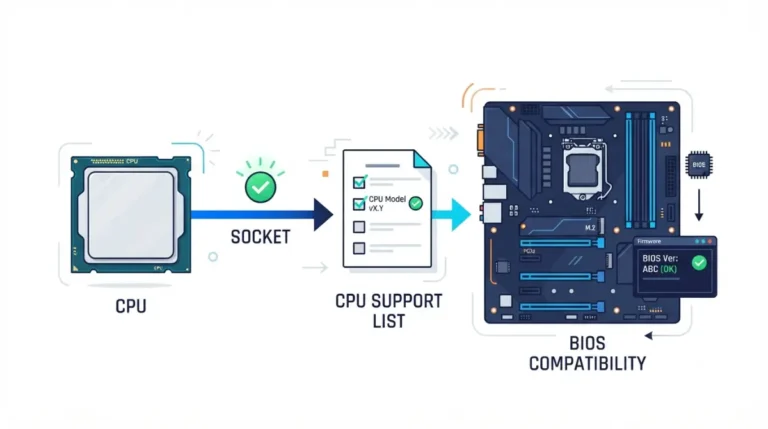
Memory is one layer of several — sockets, firmware and lanes each have their own rules, covered in the full motherboard compatibility check.
ℹ️ Risk Note: Two things in this article carry real cost. Enabling a memory profile runs the kit above the speed your processor’s maker publishes, and updating a BIOS can permanently disable a board if it is interrupted or given the wrong file. Use only your board manufacturer’s file and method, and contact their support if anything is unclear.
Gate 1: will the module physically fit the slot?
DDR5 and DDR4 modules are the same length but notched in different positions, so a DDR5 stick cannot seat in a DDR4 slot. The keying is defined by the JEDEC DDR5 standard, and no consumer board accepts both generations — each board is built for one.
Desktop boards take full-size DIMMs. Laptops and mini-PCs take shorter SO-DIMMs, and the two are not interchangeable.
Subtype matters too. AMD’s page for the Ryzen 7 9850X3D lists system memory type as DDR5 and subtype as UDIMM, which rules out the registered modules sold for servers.
🧩 Compatibility Check: Read the Memory row on your board’s specification page and the System Memory Type and Subtype fields on your processor’s page. Both must say the same generation before anything else on this page applies.
Module height is the last physical check. Compare the kit’s published height against your cooler’s published clearance figure before you order — tall heatspreaders and large air coolers regularly collide.
Gate 2: the speed your CPU supports vs the speed on the box
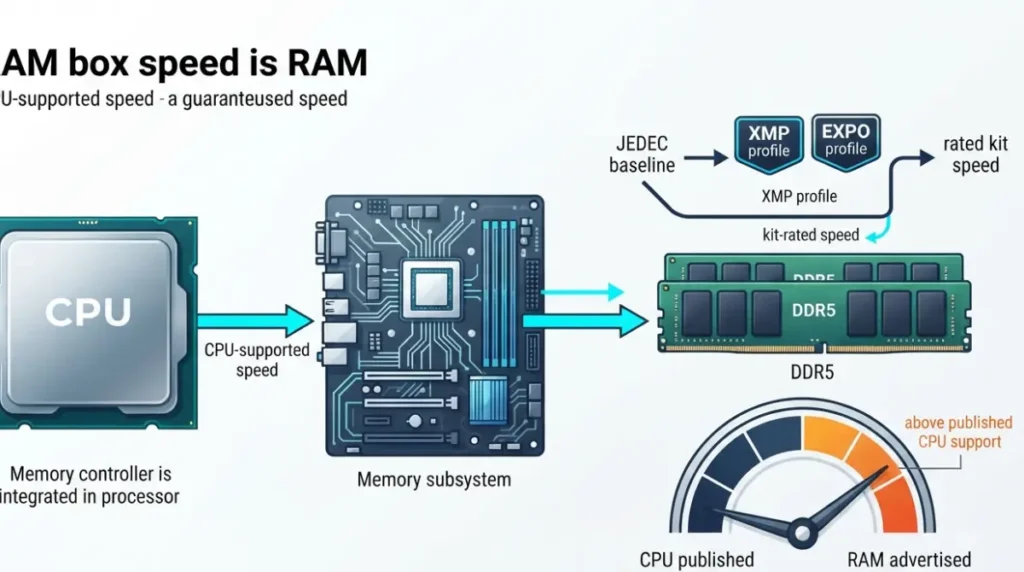
The number on the box is a profile, not a default. Every DDR5 kit boots at a conservative JEDEC speed first, and the advertised rating only applies once you enable the kit’s XMP or EXPO profile in the BIOS.
That rating is also capped by your processor, not your board. The memory controller sits on the CPU, which is why each maker publishes its own supported figure.
📊 Spec Check: AMD’s specification page for the Ryzen 7 9850X3D lists a maximum memory speed of DDR5-5600 with two modules installed. Intel’s specification page for the Core Ultra 9 285K lists memory support of up to DDR5 6400 MT/s across two channels. Both read September 2026.
A DDR5-6000 kit on that AMD chip is therefore running above the published figure once EXPO is on. Boards advertise far higher numbers, usually marked “(OC)” — those are overclock ceilings the board will attempt, not speeds the processor is rated for.
Settle the chip and socket before the memory: confirm your CPU and socket first.
Gate 3: how to read your board’s memory QVL
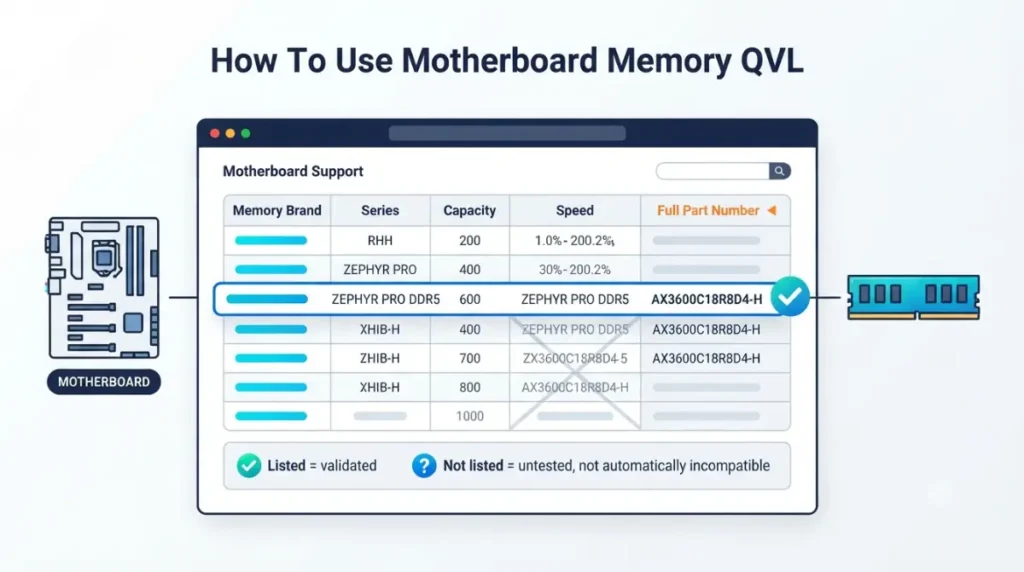
A QVL, or qualified vendor list, is the set of memory kits the board maker actually validated on that exact model. It is published per board, not per chipset, and it is usually split by processor family.
You’ll find it under the board’s support page — on the support page for MSI’s MAG X870 Tomahawk WiFi, for example, it sits in the memory section alongside the manual and BIOS files.
🧩 Compatibility Check: Match the kit’s full part number, not its marketing name. The same family is sold in many capacities and speeds, and only the exact part number tells you which one was validated.
A listing means that kit was validated in that configuration. Absence means it wasn’t tested, which is not the same as incompatible — lists are finite and kits appear and vanish from retail constantly.
If yours isn’t listed, treat the rated profile as unproven rather than impossible, and buy where the return policy is good.
Gate 4: how many sticks, and which slots
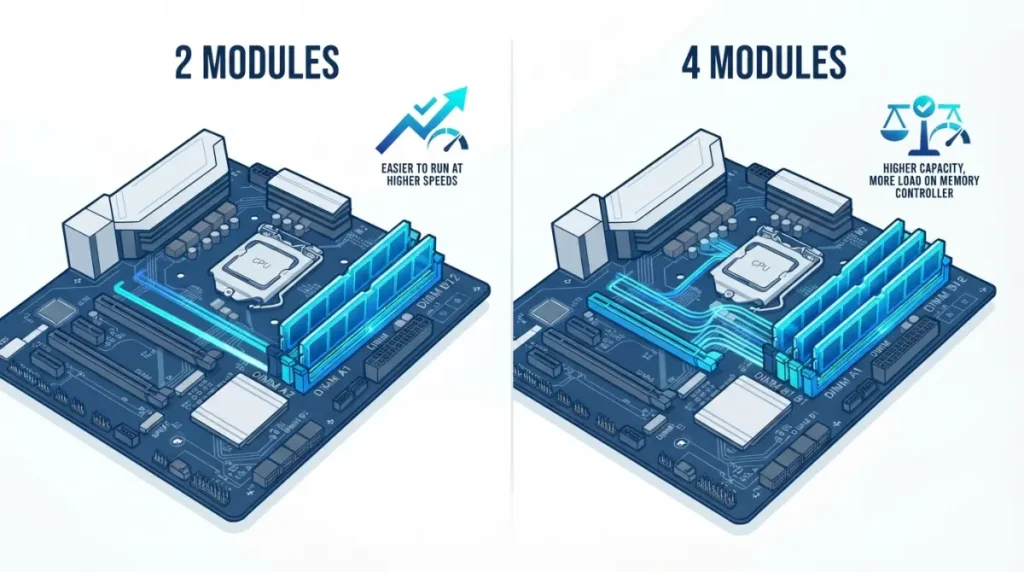
Buying two modules instead of four is the single cheapest performance decision in this article, and AMD publishes the reason on its own spec sheet.
| Configuration | Published maximum speed | Key detail |
|---|---|---|
| 2 modules, single-rank | DDR5-5600 | The supported configuration |
| 2 modules, dual-rank | DDR5-5600 | No penalty for dual-rank at two modules |
| 4 modules, single-rank | DDR5-3600 | Filling all four slots drops the rating |
| 4 modules, dual-rank | DDR5-3600 | Same drop, regardless of rank |
Source: AMD product specification page for the Ryzen 7 9850X3D, read September 2026. Figures apply to that processor; check your own model’s page.
🔍 Why It Works: Each memory channel is a shared electrical path. Hanging two modules on one channel degrades signal quality, so the platform’s guaranteed speed drops to keep it stable.
For 32GB, that means one 2×16GB kit beats two 2×8GB kits. Your manual’s DIMM population table names which two slots to use — usually the second and fourth from the CPU, never the two closest.
What getting this wrong costs in 2026
The four checks above used to protect a $90 purchase. They now protect a far larger one, because the AI build-out has redirected DRAM capacity away from consumer memory.
Tom’s Hardware, which maintains a running index of the lowest current RAM prices, reported the cheapest 32GB DDR5 kit at $375 as of June 2026. Older platforms offer no shelter — the same outlet tracked 32GB DDR4 kits moving from roughly $60–90 in October 2025 to $150–180 by January 2026. Prices move weekly, so check the index rather than trusting any figure in an undated article.
✅ Do This: Before you order, write down your board model, processor model, kit part number and planned module count, then confirm each of the four gates against the pages named above. Ten minutes now, several hundred dollars protected.
It’s installed and something’s wrong
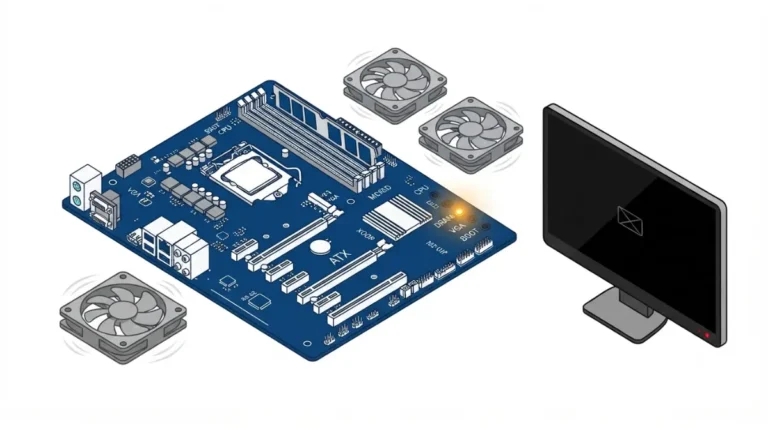
A black screen after a memory install is common, and it’s usually one of four things. Start with the cheapest.
- Reseat both modules firmly in the slots your manual’s population table names.
- Try one module alone, then the other, to identify a faulty stick or slot.
- Clear CMOS using the procedure in your manual, which resets a failed profile.
- If it posts but runs slow, re-enable the profile — or step down one speed tier if it won’t hold.
First boot with new DDR5 can take noticeably longer than usual while the board trains the memory. Give it a full minute before assuming failure.
⚠️ Watch Out: Memory support genuinely does change across BIOS revisions, but flashing one is the riskiest step here — an interrupted or incorrect update can leave the board unable to boot at all. Check which BIOS version your board is running first, read your board maker’s release notes for memory entries, and use only their file and their method. If the notes are ambiguous, ask their support before flashing.
RAM and motherboard compatibility: quick answers
1. Can I put DDR5 in a DDR4 motherboard?
No. The notch sits in a different position, so a DDR5 module physically cannot seat in a DDR4 slot.
2. How do I find my motherboard model?
Open System Information in Windows and read the BaseBoard Manufacturer and BaseBoard Product fields. The model is also printed on the board.
3. What is a memory QVL?
A qualified vendor list: the memory kits a board maker validated on that exact model, published on the board’s own support page.
4. Is my RAM compatible if it’s not on the QVL?
Not necessarily incompatible — untested. Lists are finite, so buy from a retailer with a workable return policy.
5. What’s the difference between XMP and EXPO?
Both are stored profiles that apply a kit’s rated speed. XMP is Intel’s; EXPO is AMD’s. Neither runs by default.
6. Does the CPU limit RAM speed?
Yes. The memory controller sits on the processor, and each maker publishes a supported maximum on that chip’s specification page.
7. Why is my RAM running slower than advertised?
The kit booted at its JEDEC default. Enable the XMP or EXPO profile in the BIOS to apply the rated speed.
8. Can I mix RAM kits or brands?
Kits are validated as matched sets. Mixing two kits is untested by anyone, so buy the capacity you need as one kit.
9. Do four sticks run slower than two?
Yes. AMD publishes DDR5-5600 with two modules on the Ryzen 7 9850X3D and DDR5-3600 with four.
10. Do I need a BIOS update for new RAM?
Sometimes — memory support changes across revisions. Check your board’s release notes, then use only the manufacturer’s file and method
Before you order
Check the four gates in order: generation and fit, capacity and slots, your processor’s published speed, then the board’s QVL. Two modules beat four. Every figure here came from a manufacturer’s own page, read in September 2026 — and we didn’t test any of this hardware, so verify your specific models before you spend.