What your motherboard debug LED means when there’s no POST

Debug LED wording differs by maker: Gigabyte’s BOOT light means the OS wasn’t reached, MSI’s means no boot device. ASUS and ASRock tables included.
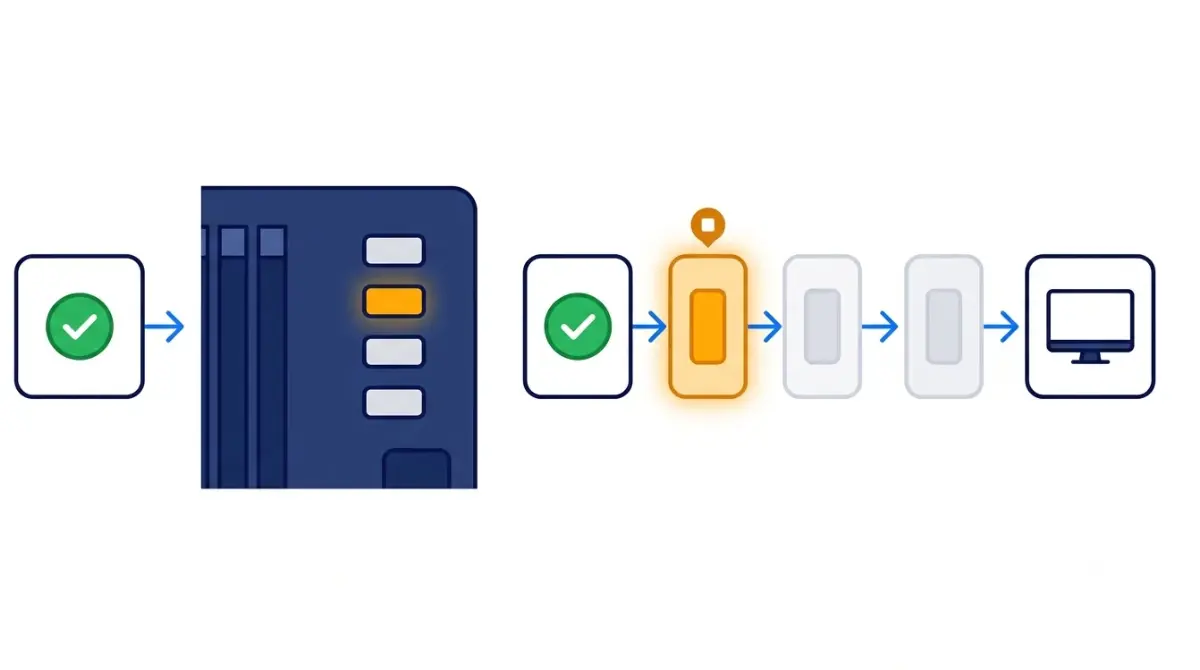
Table of Contents
A solid debug LED marks the stage where POST stopped: CPU, DRAM, VGA or BOOT. Start with the cheapest check for that stage, and read the label as a suspect list, since MSI’s own fix for a stuck DRAM light includes inspecting the CPU socket pins because the memory controller is inside the CPU.
On a new DDR5 build, a DRAM light that stays on for a few minutes can be the board training the memory, so time it before you take anything apart.
Read the light before you touch anything

On a healthy start the four LEDs light one after another and go dark. When one stays lit and the screen stays black, that stage never finished.
Each board maker words the lights a little differently, and the BOOT light differs most.
| Board maker and document | A lit LED means | Colors | BOOT LED means |
|---|---|---|---|
| ASUS Q-LED | No device, or device faulty | Not given in the FAQ | No boot device, or boot device faulty |
| MSI EZ Debug LED (MAG B760M MORTAR WIFI II) | Device not detected or failed | Red CPU, yellow DRAM, white VGA, green BOOT | Boot device not detected or failed |
| Gigabyte Status LEDs (B650 GAMING X AX V2) | Device not working normally | Not given on the page | Operating system not reached yet |
| ASRock Post Status Checker (B760 Pro RS) | Device dysfunctional | Red for all four | Storage dysfunctional |
Sources: ASUS Q-LED troubleshooting FAQ, MSI MAG B760M MORTAR WIFI II user guide, EZ Debug LED page, Gigabyte B650 GAMING X AX V2 user’s manual, p. 17, ASRock B760 Pro RS user manual, p. 44.
Gigabyte’s BOOT wording is the broad one: the board simply hasn’t reached the operating system. Colors are a per-board choice, so go by the printed label beside the lit LED.
Boards that blink the power LED instead
Some ASUS boards have no LED row and use Q-LED Core, which flashes the case power LED.
| Power LED | Cycle | ASUS meaning |
|---|---|---|
| Fast blinking | 0.25 s | Intel: no DRAM detected. AMD: no CPU detected. |
| Slow blinking | 2 s | No VGA detected |
| Very slow blinking | 8 s (4 s on, 4 s off) | No boot device detected |
| Solid | Steady | Normal boot |
Source: ASUS Q-LED Core FAQ, which also lists the BIOS switch for it under Advanced > Onboard Devices Configuration.
ASRock boards carry one of three systems: Dr. Debug codes, the four-LED Post Status Checker, or a Power Status LED that blinks the case light at three rates for no DRAM, no console output and no boot devices (ASRock EZ LED Troubleshooting). That page doesn’t pair each rate with its fault in writing, so take the pairing from your board’s manual.
DRAM light stuck on a new DDR5 build

About 100 seconds for two 16GB modules, and about 400 seconds for four 32GB modules: that was ASRock’s first-boot memory training table for its X670E boards at the AM5 launch, as PC Gamer reported. ASRock shortened those times with later firmware, and on AM5 that training runs at the first boot and whenever the CMOS is reset (TechSpot).
Leave a lit DRAM light alone, with the power on, for the full 400 seconds of that largest configuration. Still solid after that? Work through the memory checks in the order ASUS and MSI give them:
- Reseat each module fully, and check the gold pins and the slots for dirt (ASUS).
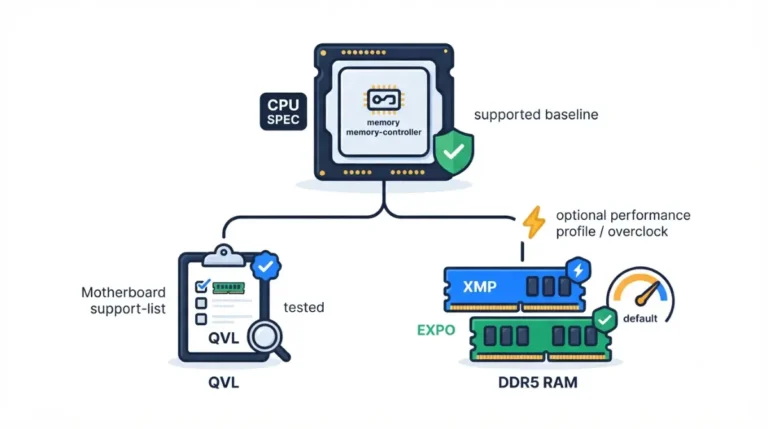
- Use the slots your manual names for your module count, and confirm the kit is on the board’s memory QVL (dual-channel slot order for two and four sticks).
- Boot with one module, then add one at a time to find a bad stick or slot.
- Reset the CMOS to drop memory settings that won’t train.
- Remove the CPU and look at the socket pins.
The suspects are the same on Intel’s boxed processors: a faulty module, poor seating, an unsupported kit or the wrong slot (Intel stuck-LED article).
Why does the CPU light stay on?
The 4/8-pin CPU power lead in the top-left corner of the board is the first suspect, because a loose one stops POST (NZXT N7 troubleshooting page). A missing CPU power connector is on MSI’s no-display checklist as well.
Next comes the board’s CPU support list. A newer processor can need newer firmware than the board shipped with, depending on when the board was made, and checking socket, BIOS and lane compatibility explains how to read the BIOS minimum. Boards with a USB flashback button can take that update with no working CPU, as BIOS Flashback without a CPU describes.
Only then does ASUS’s order apply: reinstall the CPU, look for dirt on the socket and the CPU, then look for bent or broken pins. Seating a CPU without bending socket pins shows what a flush, latched chip looks like.
Stop if: you see a bent or broken pin in the socket or on the CPU. Don’t try to straighten it. ASUS’s answer for a damaged CPU is a different CPU, and a damaged socket goes to the board maker’s support or an authorized service center.
A VGA light can mean the CPU has no graphics
An Intel Core i3-13100F has no integrated graphics. Any Intel processor with an F suffix needs a graphics card for a picture (Intel no-boot, no-display article), so with one of those chips and the monitor on the motherboard’s HDMI port, the VGA light is reporting a real gap. For other chips, check the graphics entry on the processor’s spec page before blaming the board.
With a card installed, ASUS’s order is to reseat it, clean the gold contacts on the card and in the PCIe slot, then try another card. NZXT’s guide puts a cheaper check first, because a VGA light can also mean no monitor was detected: confirm the cable and the monitor’s input. Which CPUs drive the motherboard’s own ports is covered in why the motherboard HDMI port shows no display.
BOOT LED: the hardware passed, the drive did not
By this stage the earlier checks have passed. ASUS’s order for this light: reconnect the SATA cable at both ends, reseat the M.2 SSD and confirm its screw is locked, clean the M.2 contacts, then try another cable, port or drive.
NZXT’s N7 page adds that a BOOT light can mean the UEFI isn’t starting.
Two lights at once, or lights that keep cycling
Both the CPU and DRAM lights stay solid when an ASRock X870 Pro RS fails a restart. One cause on AM5 is restarting while hardware-monitoring software such as HWiNFO64 is running, and the fix is to close that software and restart (ASRock FAQ).
Lights that bounce between two stages mean the board is retrying a stage and failing, according to NZXT. Treat the pair as a stuck light and start with the later stage.
When nothing narrows it down, run MSI’s minimum POST test: CPU, CPU cooler, one memory module, the power supply and a monitor, with USB devices, drives and PCIe cards removed. Add parts back one at a time until the light returns.
Before you buy: don’t order a replacement CPU, memory kit or graphics card on the strength of one LED. NZXT’s guide traces some DRAM lights to the CPU’s memory controller and some VGA lights to the monitor, and the minimum test costs nothing.
Reset CMOS, then contact your board maker
Unplug the PC first. MSI’s method is to short the JBAT1 pins with a metal object, or to remove the CMOS battery for 5 minutes and refit it. Your board’s jumper name and position are on the manual’s connector pages.
If the same light returns, ASUS’s next step is a firmware update through USB BIOS FlashBack on boards that have it, and after that, ASUS Product Support. Have these ready for your board maker:
- Board model and revision
- Which LED stayed lit, or the power LED’s blink pattern
- The CPU and the memory kit’s part number
- Every check you’ve done, in order
That is where ASUS’s own Q-LED page stops too.
Found this helpful? See more of our guides on Google.
Want to see our guides first on Google?