How many M.2 slots can you use at once without losing ports
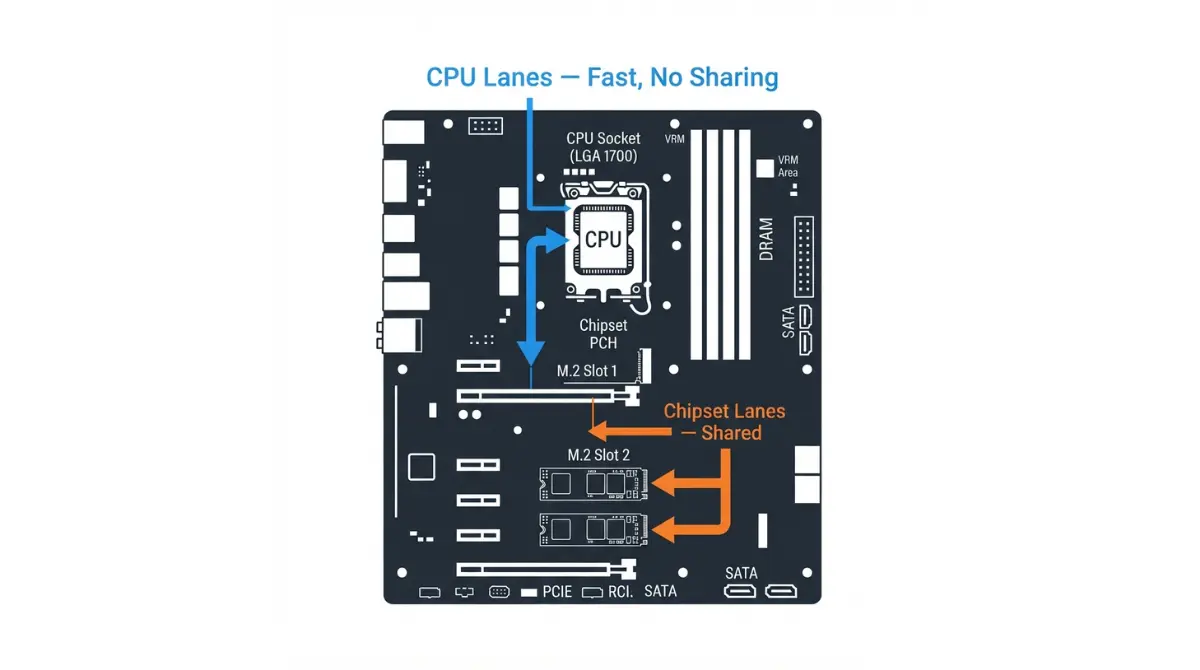
Table of Contents
On most current mainstream ATX boards you can fill every M.2 slot at once. What changes is what else stays switched on — a SATA port, a second x16 slot, or on some boards nothing at all.
Where you are decides where to start. Choosing a board or a drive, start with the next two sections. Holding three drives and wondering which slot gets which, jump to the populate order. Something stopped working after an install, go straight to the troubleshooting section.
The slot count printed on a product page is a ceiling, not a promise. What filling it costs you is a per-model compatibility fact, and every manufacturer publishes it.
ℹ️ Risk Note: Changing your storage layout can make a working drive vanish from Windows. Back up anything you care about before moving drives or cables, and if a drive stops appearing, do not initialize or format it — that is almost always a slot configuration symptom, not a failed disk.
Where your M.2 slots actually get their lanes
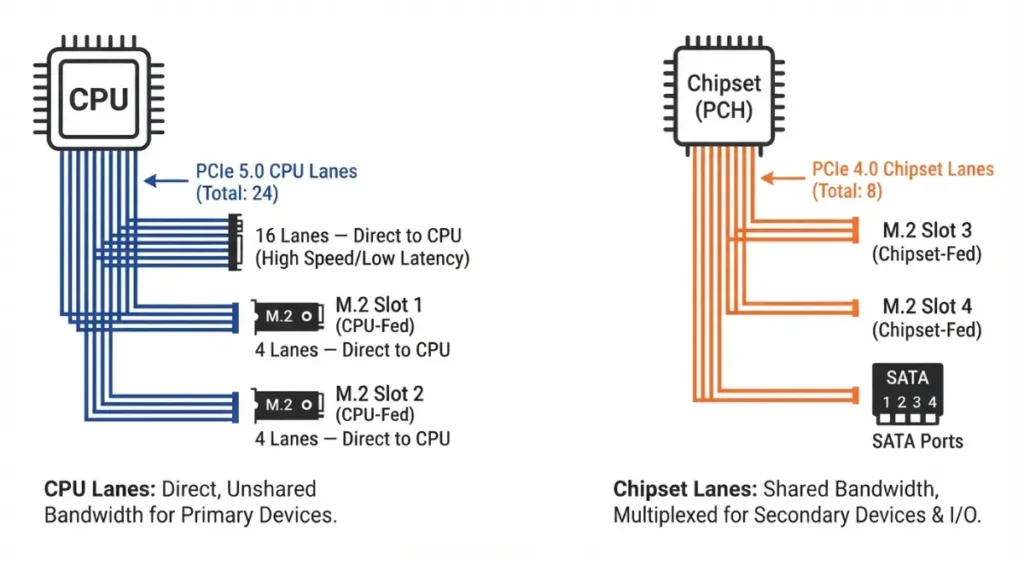
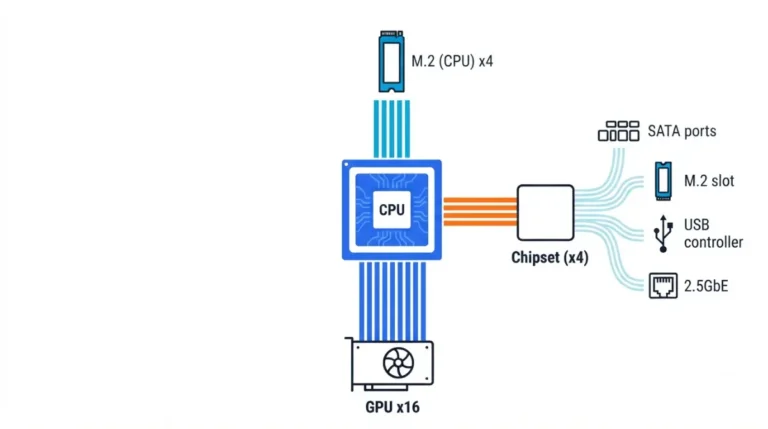
Every M.2 slot is fed by four PCIe lanes, and those lanes come from one of two places: the processor itself, or the chipset. That single split explains almost every sharing rule you will read in a manual.
| Lane source | Intel Core Ultra 9 285K (LGA1851) | AMD Ryzen 9 9950X (AM5) | Key detail |
|---|---|---|---|
| Lanes from the CPU | 24 total, PCIe 5.0 and 4.0 | 28 native, 24 usable, PCIe 5.0 | Fastest, never shared |
| Published configurations | up to 1×16+2×4, 2×8+2×4, 1×8+4×4 | 16 for graphics plus two x4 blocks | The x4 blocks are your CPU M.2 slots |
| Link to the chipset | DMI 4.0, 8 lanes | 4 lanes reserved | Everything downstream shares this pipe |
| Extra lanes from the chipset | Varies by chipset tier | X870E adds 8x Gen4, X870 adds 4x Gen4 | Where your third slot usually lives |
Source: Intel ARK product specifications for the Core Ultra 9 285K, and AMD’s product page for the Ryzen 9 9950X, both read September 2026. Figures apply to these processors, not to every model in their families.
🔍 Why It Works: CPU lanes run straight to the processor, so a drive there never queues behind anything. Chipset lanes all share one link back to the CPU, which is why a board can offer more slots than it has direct lanes to fill.
For the wider picture beyond storage, see how lane sharing works across the rest of the board.
How to find the sharing table in your board’s manual
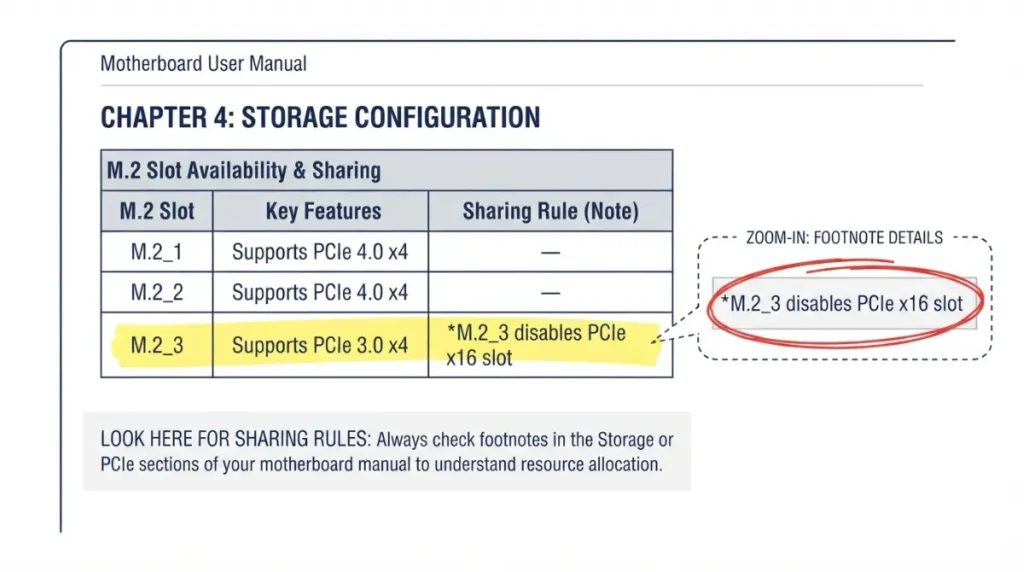
Your board publishes the exact answer, usually on one page. It is worth 90 seconds.
What the table is called and where it sits
Open your board’s tech specs page or the specifications summary at the front of the manual, then find the Storage section. Each slot is listed by its board label — M.2_1, M.2_2 — with its key type, supported lengths, and PCIe mode.
The column most people miss
The sharing rules live in the asterisked footnotes under the list, not in the headline counts. On the ASUS TUF GAMING B850-PLUS WIFI, for example, the PCIEX16(G4) slot shares bandwidth with M.2_3 and is disabled when M.2_3 runs — you can read that on the published storage and expansion specifications for that board.
Lengths and drive type change the answer
Slots do not all take the same drive. That same board lists M.2_1 as type 2280 only, while M.2_2 accepts 2242/2260/2280/22110.
What you give up when you fill every M.2 slot
Filling slots spends lanes, and boards pay for it in one of three currencies: a SATA port, an expansion slot, or a drop in link width. Which currency your board uses is fixed by its design.
| Drives installed | Usual cost | On the B850 example board | Best for |
|---|---|---|---|
| One M.2 | Nothing | M.2_1 runs PCIe 5.0 x4 from the CPU | Everyone |
| Two M.2 | Usually nothing | M.2_2 also runs from the CPU | Most upgraders |
| Three M.2 | An expansion slot or SATA ports | the secondary x16 slot is disabled, SATA untouched | Creators, large libraries |
| Four or more | Depends entirely on the model | Not applicable — this board has three | Workstation builds |
Source: ASUS published tech specs for the TUF GAMING B850-PLUS WIFI, read September 2026. The first two rows are a pattern across current mainstream boards, not a guarantee for yours.
The old rule that an M.2 drive always kills two SATA 6Gb/s ports came from an era of smaller CPU lane budgets. It still applies to plenty of boards, and the full breakdown of which SATA ports an M.2 slot switches off covers that case in depth.
📊 Spec Check: That B850 board offers three M.2 slots and four SATA 6Gb/s ports, with two of the three M.2 slots fed directly by the processor.
Which slot your boot drive should go in
Order matters more than most people expect, because the slots are not equivalent.
Start with the CPU-attached slot
Put your fastest drive — usually the boot drive — in the slot the specs list under your processor rather than under the chipset. On the example board that is M.2_1, listed at PCIe 5.0 x4 with Ryzen 9000 and 7000 processors.
Your CPU can change the slot’s speed
The same slot is not always the same speed. That board lists M.2_1 at PCIe 4.0 x4 instead when a Ryzen 8000 series processor is installed — the slot did not change, the processor’s lane budget did. Confirm your own pairing using the socket and chipset compatibility checks.
The slot under your graphics card
Bulk storage and older drives belong in the chipset slots, which are often the ones sitting beneath the graphics card and running warmer. Fit the heatsink your board supplies for that slot.
If you need more drives than your board has slots
Before buying anything, check one setting — it decides which products can work at all.
Multi-drive cards need bifurcation
A card holding two or four drives in one x16 slot only works if your board can split that slot into separate x4 links.
A card carrying one drive presents a single device, so it does not need the slot split. It still consumes that slot’s lanes, and on many boards populating a lower slot narrows another one.
SATA is still a real answer
For backups, archives, and media libraries, a 2.5-inch SATA SSD in a port you are not using costs nothing in lanes.
⚠️ Watch Out: A four-drive adapter card installed in a board that cannot split lanes will show one drive or none, and it is not a fault you can fix in software. Confirm bifurcation support for that specific slot before ordering.
A drive disappeared after you installed an M.2
This is common, and it is usually the board doing exactly what its specifications say it does.
Check the sharing table first
Go back to your board’s Storage footnotes and find the slot you just populated. If it lists a disabled port or slot, that is your answer.
Move the cable, do not reformat
A drive that vanished because its port was switched off is intact. Shut down, move its cable to a port the footnotes do not list, and restart.
✅ Do This: If the drive still does not appear on a different port, contact your board manufacturer’s support and ask which ports are exclusive on your model and BIOS revision. If the disk was already initialized or formatted by mistake, stop and consult a data recovery service rather than writing anything else to it.
Common questions about M.2 slots and lane sharing
1. How many M.2 slots can I use at once?
On most current mainstream boards, all of them — the cost is a SATA port or an expansion slot, named in your specifications.
2. Does installing an M.2 SSD disable SATA ports?
On many boards yes, on others no. Your board’s storage footnotes name the exact ports affected.
3. Why is one M.2 slot faster than another on the same board?
One is fed by the processor, the other by the chipset. Those lanes differ in generation and in what they share.
4. Where do I find the sharing table?
In the Storage section of your board’s tech specs or manual, in the asterisked footnotes below the slot list.
5. Which M.2 slot should my boot drive go in?
The slot listed under your processor rather than the chipset — usually M.2_1, and usually nearest the socket.
7. Can I add more M.2 slots with an adapter card?
Yes, if your board supports the required lane split for multi-drive cards, or a single-drive card in a spare slot.
8. What is PCIe bifurcation?
Splitting one x16 slot into separate x4 links so a card holding several drives presents each one to the system.
9. Will filling all my M.2 slots slow my graphics card?
On some boards a populated slot narrows the graphics link. Your board’s footnotes state whether yours does.
10. My SATA drive vanished after installing an NVMe SSD — is it dead?
Almost certainly not. Check the sharing footnotes and move its cable to an unaffected port before assuming failure.
11. Do all M.2 slots take the same drive?
No. Supported lengths differ by slot, so check the listed types before buying a 22110 or 2242 drive.
Before you buy the drive
Open your board’s storage specifications, count your drives against the footnotes, and pick the order before anything is plugged in. Two minutes there prevents an afternoon of troubleshooting.
Working through a full build check? The complete motherboard compatibility checklist covers the rest, including graphics card slot and length compatibility. Every figure above came from a manufacturer’s own page, and we tested none of this hardware ourselves.