
The exact way to check CPU and motherboard compatibility
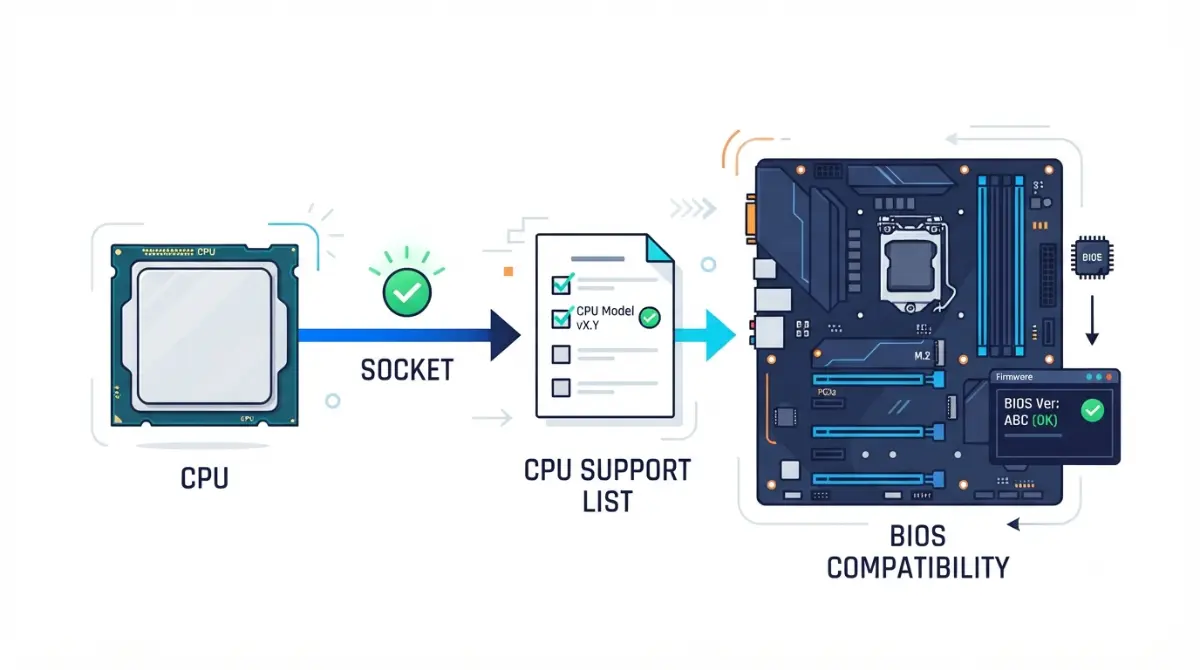
Table of Contents
Three things decide whether a processor runs in a motherboard: the socket has to match, the board’s chipset has to support that processor’s family, and the board’s firmware has to be new enough to recognize it. The third is what leaves a finished build sitting dark on the desk.
Start from where you are:
- Buying both new: read the tables below, then run the four checks.
- Adding a CPU to a board you own: start with the four checks, then firmware.
- Already built, nothing happens: skip to the last section.
Socket and chipset are the first two of several things a board has to get right, and the full motherboard compatibility checklist covers the rest.
ℹ️ Risk Note: Updating a motherboard BIOS can leave the board unable to boot if the process is interrupted or the wrong file is used. Back up your data first, use only your board manufacturer’s file and documented method for your exact model, and contact their support if anything is unclear.
Socket and chipset are two different checks
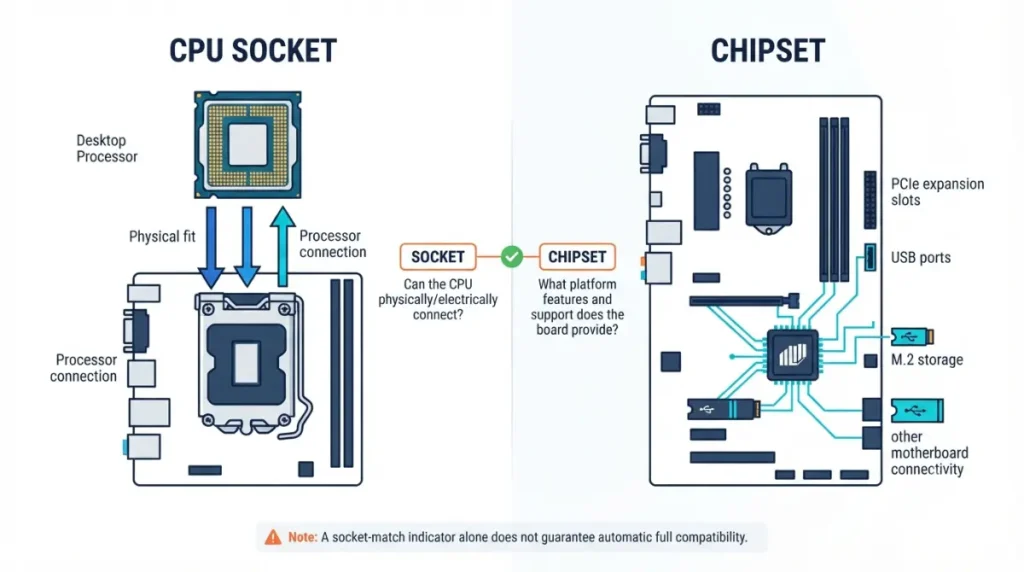
A board’s spec sheet lists both, and they answer different questions.
What the socket decides
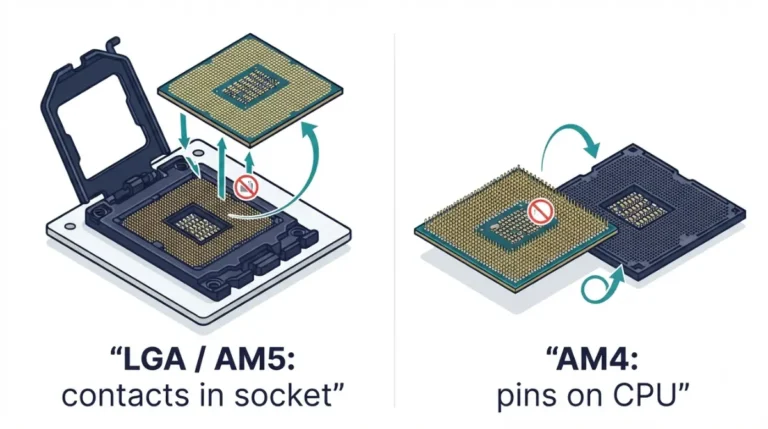
The socket is the physical connector the processor sits in. It fixes the pin count, package size and electrical interface, so a chip built for one socket cannot seat in another. AMD’s socket AM5, for example, is a 1718-pin LGA arrangement.
What the chipset decides
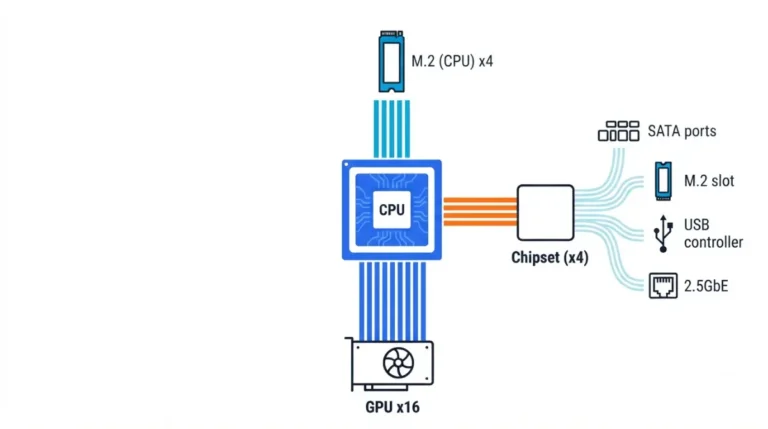
The chipset is a separate controller on the board. It governs how many PCIe lanes, USB ports and M.2 slots the platform can offer, and whether overclocking is permitted.
Why a matching socket isn’t enough
🔍 Why It Works: Chipset specifications are platform-level maximums, not promises about a particular board. A manufacturer can expose fewer lanes, slots or ports than the chipset allows, and several connectors often share bandwidth — which is why two boards with the same socket and chipset can behave differently.
Which sockets and chipsets are current right now
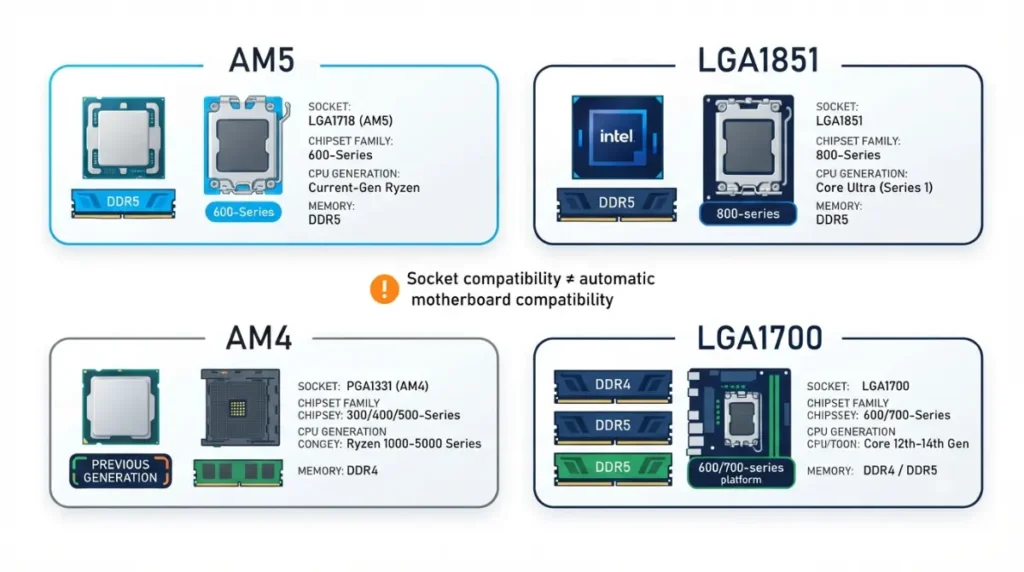
Four sockets cover almost everything on sale or in service today.
| Socket | Chipset families | CPU families | Memory | Key detail |
|---|---|---|---|---|
| AM5 | 800 series (X870E, X870, B850, B840); 600 series (X670E, X670, B650E, B650, A620) | Ryzen 7000, 8000, 9000 | DDR5 | 1718-pin LGA; AM4 coolers fit |
| AM4 | 500 series and earlier | Ryzen 1000–5000 | DDR4 | Previous generation, still sold |
| LGA1851 | Intel 800 series (Z890, B860, H810) | Core Ultra desktop, Series 2 | DDR5 | Will not accept LGA1700 chips |
| LGA1700 | Intel 600 and 700 series | 12th–14th Gen Core | DDR4 or DDR5, board-dependent | Previous generation |
Sources: AMD’s socket AM5 quick reference guide and Intel’s socket compatibility notice. Verified September 2026.
Intel states that its Series 2 desktop processors use LGA1851, which shares the physical size of LGA1700 but is not backward compatible with it, and that these chips will not run on 700 or 600 series chipsets. The same notice confirms LGA1700 cooler mounting holes remain mechanically compatible with LGA1851, so a cooler can often carry over when a board cannot.
| Socket | BIOS update likely for a newer CPU? | Upgrade runway |
|---|---|---|
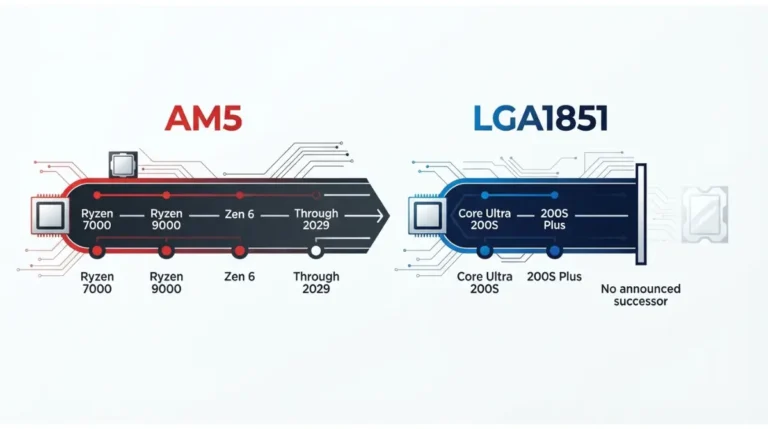
| AM5 | Often, on older 600-series boards | AMD has extended support through 2029 |
| AM4 | Usually | Ended; final releases only |
| LGA1851 | Sometimes | Intel’s next desktop generation is reported to move to a new socket |
| LGA1700 | Usually | Ended |
How to check your exact CPU and board in four steps
Description:
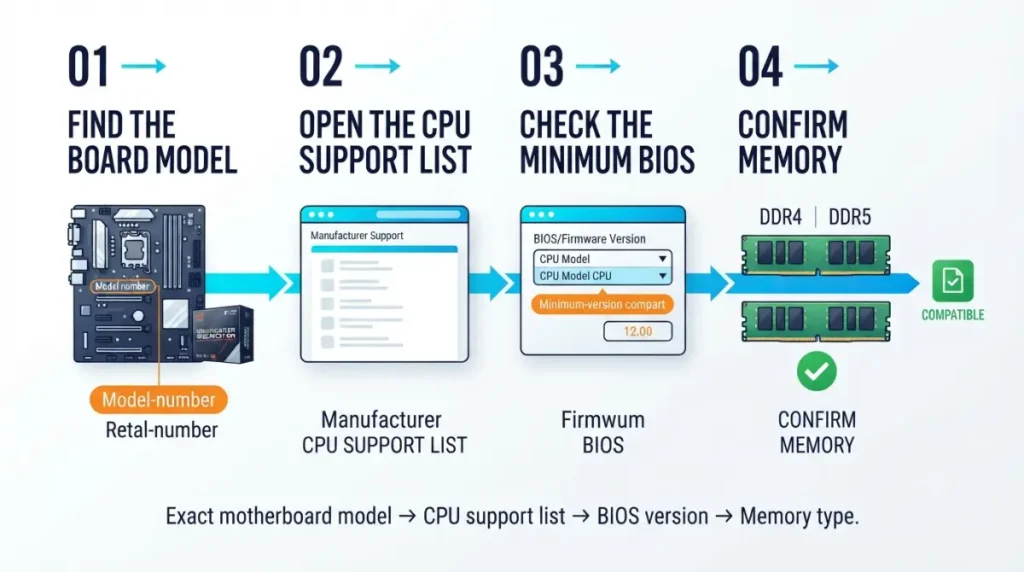
Four checks give a definitive answer for your parts.
- Find the model number. It’s printed on the board itself, between the slots, and on the box.
- Open that model’s CPU support list. Search the model number on the manufacturer’s support site and open its compatibility page.
- Read the BIOS version column. Beside your processor, the list shows the minimum firmware version that board needs.
- Confirm the memory type. On the processor’s official specification page, the socket and memory fields answer this in two lines.
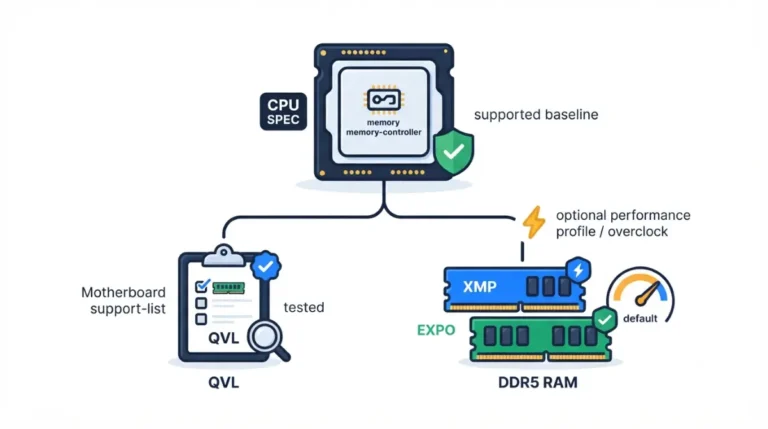
Memory generation follows the processor and platform, not the chipset tier. A DDR5 chip cannot run in a DDR4 board.
When the socket matches but the board still needs a BIOS update
You need a firmware update only if that support list shows a minimum BIOS version newer than the one your board shipped with.
Why a newer CPU can need newer firmware
Boards often reach shelves before the processors they will eventually support. Until the firmware knows the chip, the board may not start at all.
How to tell whether yours needs it
A blank BIOS column usually means the shipping firmware is enough. A version number means the board must be at or above it. An absent processor means that board does not support it.
Boards that can update without a supported CPU
Some models can update firmware with no processor installed. ASUS documents three routes for a different-generation CPU: update using an older supported chip, use USB BIOS FlashBack if that model offers it, or contact a service center — its support documentation sets out which applies.
⚠️ Watch Out: Follow only your manufacturer’s documented procedure for your exact model, never a generic walkthrough. ASUS warns that a BIOS update carries a risk of the system not booting, that data should be backed up first, and that power must stay connected throughout. If your board has no no-CPU update path, contact the vendor or your retailer before buying the processor.
Choosing a chipset tier without overpaying
Tier affects features and expansion, not frame rates.
What the higher tiers add
More PCIe lanes, more high-speed USB, guaranteed PCIe 5.0 for graphics or storage, and overclocking support. AMD’s guide shows USB4 on X870E and X870 boards, and lists A620 as allowing memory overclocking only, with processor overclocking enabled on the tiers above it.
When the cheaper chipset is right
If you won’t overclock, won’t fill every slot, and have no PCIe 5.0 storage, a mid-tier board spends your money better elsewhere.
How long each platform stays upgradeable
📊 Spec Check: AMD’s AM5 platform offers up to 24 usable PCIe 5.0 lanes and native support for processors up to 230W, per its socket AM5 reference guide. AMD has separately extended AM5 platform support through 2029, which is a published commitment, not a forecast. Intel’s next desktop socket has been widely reported but not published as a consumer specification — treat it as reported.
The parts match but the PC won’t start
Work through this before returning anything.
Check it’s a compatibility problem first
Confirm the processor appears on your board’s support list, then compare the board’s current BIOS version against the listed minimum. If the chip isn’t listed at all, no update will help.
What a firmware mismatch looks like
The board draws power — fans spin, lights come on — but nothing reaches the screen. Your board’s manual explains what its diagnostic indicators mean; those differ by vendor.
When to stop
If the support list clears your processor and the firmware is current, stop troubleshooting compatibility and contact the board vendor or your retailer while the return window is open. Never press a processor that won’t seat freely, and don’t work on socket contacts yourself.
CPU and motherboard compatibility: common questions
1. Do all CPUs fit all motherboards?
No. Each processor fits one socket, and the board’s chipset must also support that processor’s family.
2. What if the socket matches but the chipset doesn’t?
The processor won’t be supported. Matching sockets guarantee nothing on their own; the board’s CPU support list decides.
3. Can I use an AM4 CPU in an AM5 board?
No. AM4 and AM5 use different packages and pin arrangements, so processors are not interchangeable between them.
4. Do I need a BIOS update for a new CPU?
Only if your board’s support list shows a minimum BIOS version newer than the one it shipped with. Use only your vendor’s documented method for your exact model, or contact their support.
5. How do I find my motherboard’s CPU support list?
Search your board’s exact model number on the manufacturer’s support site and open its CPU compatibility page.
6. Does the chipset affect gaming performance?
The chipset sets features and connectivity, not frame rates. Higher tiers add expansion and overclocking support, not speed.
7. Will an LGA1700 cooler fit an LGA1851 board?
Yes. Intel’s documentation states LGA1700 mounting holes remain mechanically compatible with LGA1851 boards.
8. Is the current Intel platform still worth buying?
It depends on your upgrade plans: check the platform’s published support commitment before assuming a future CPU-only upgrade.
9. My CPU fits but nothing happens on power-on.
Re-check the support list and BIOS version first, then contact the board vendor or your retailer.
10. Does the chipset decide which RAM I can use?
No. The processor and platform set the memory generation; the board determines speeds, capacity and slot count.
Before you order
Socket, chipset, BIOS version — checked against your specific board model, not its chipset family. Do that in the four steps above and the answer is definitive rather than probable. For everything else a board has to get right before you buy, work through the motherboard compatibility pillar. We verify these specifications against manufacturer documentation; we don’t test the hardware, and we say so.
One Comment