Step-by-Step Fix for No Display From Motherboard HDMI
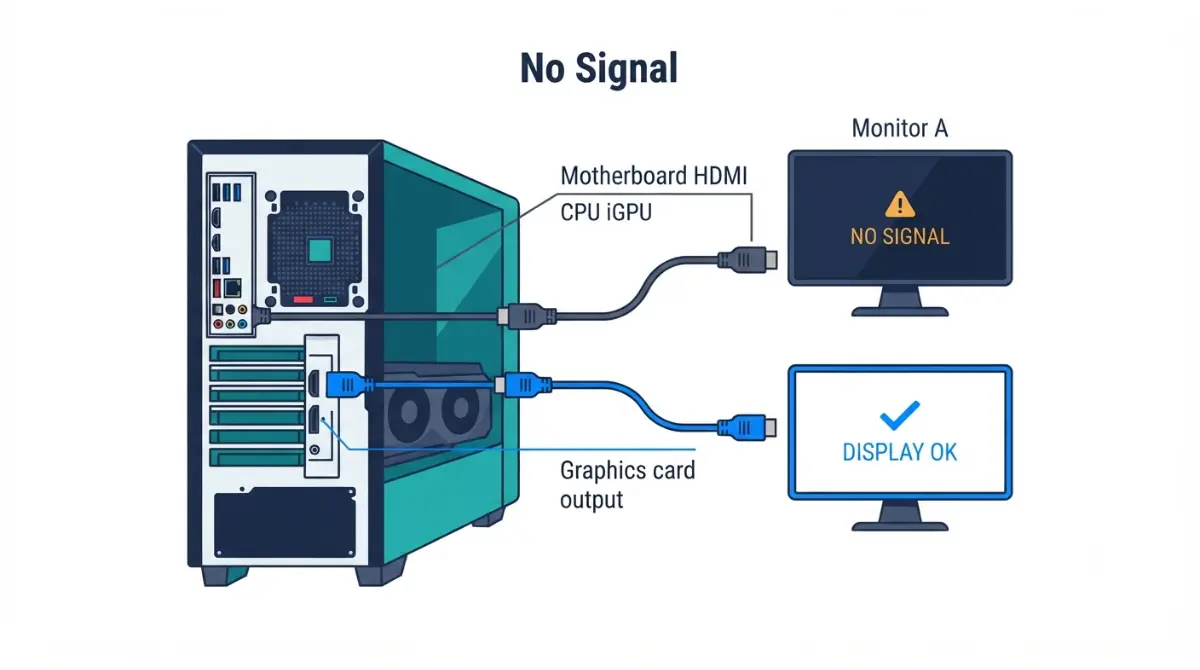
Table of Contents
Why your motherboard HDMI shows no signal
A no signal message on the motherboard’s HDMI or DisplayPort is common on a new build, and it rarely means a dead board. Start by figuring out which situation you’re in.
No display at all vs. no display from board ports only
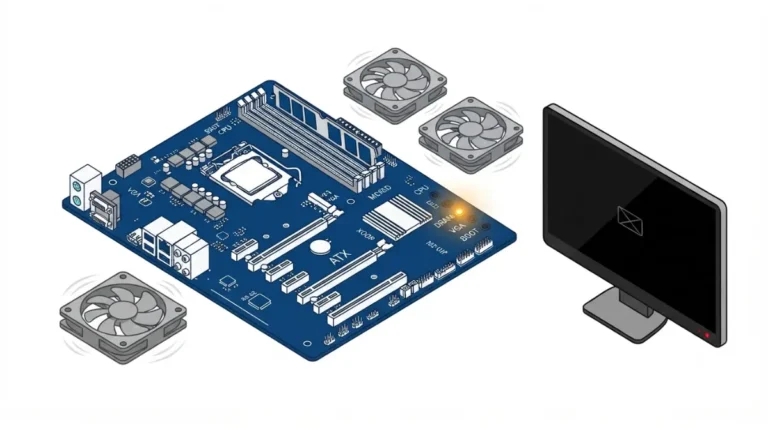
- Fans spin, but no port shows anything: the PC may not be finishing POST. That’s a boot problem, covered in Section 5.
- The PC works through a graphics card, or boots, but the board port stays blank: keep reading.
The five causes, most likely first
- Your CPU has no integrated graphics.
- A graphics card has taken over display output.
- The board’s port can’t drive your monitor’s mode.
- A cable, adapter, or monitor-input problem.
- A BIOS or Windows setting, or (rarely) a damaged port.
ℹ️ Risk Note: Some fixes below involve BIOS updates or a possibly damaged port. An interrupted or wrong BIOS update can leave a board unable to boot, so use only your board maker’s file and method, back up your data first, and contact their support if anything is unclear.
Does your CPU have integrated graphics?
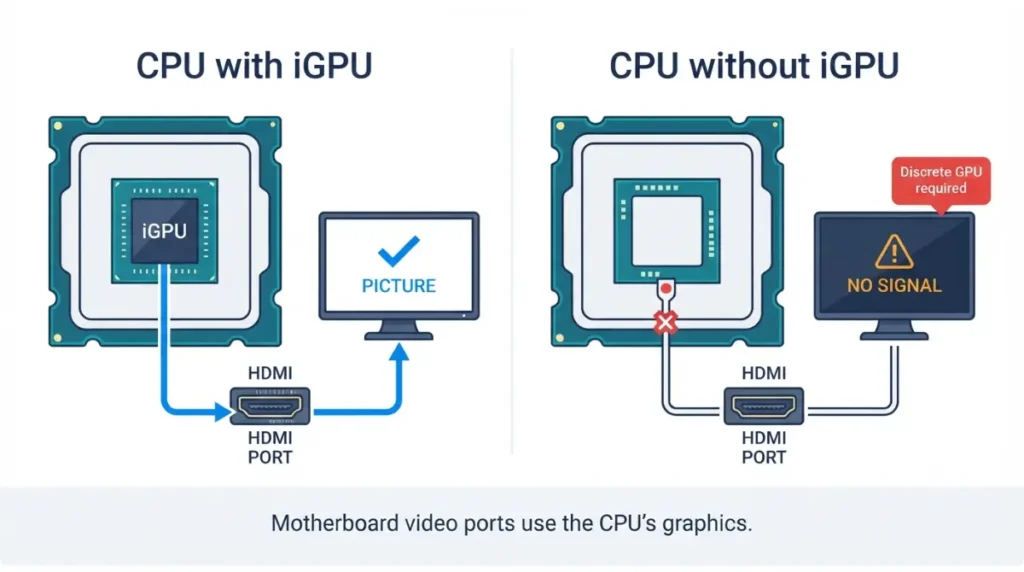
The motherboard’s video ports only carry a picture from the CPU’s integrated graphics (iGPU). If your CPU has no iGPU, those ports can’t output anything, whatever settings you change.
How to check your exact CPU model
- Open your CPU’s page on Intel’s or AMD’s website.
- Intel: find “GPU Specifications.” Intel’s spec page for the Core Ultra 7 265KF lists Graphics Output as “n/a” and 0 displays supported.
- AMD: find “Graphics Capabilities.” AMD’s specifications for the Ryzen 7 9700X list AMD Radeon Graphics. The Ryzen 5 7500F instead reads “Discrete Graphics Card Required.”
Current Intel and AMD families at a glance
| CPU | Generation / Socket | iGPU? | Key Detail |
|---|---|---|---|
| Core Ultra 7 265KF | Core Ultra Series 2, LGA 1851 (current) | No | 0 displays supported |
| Core i9-10900KF | 10th Gen (previous-gen) | No | No graphics listed |
| Ryzen 7 9700X | Ryzen 9000, AM5 (current) | Yes | AMD Radeon Graphics, 2 graphics cores |
| Ryzen 5 7500F | Ryzen 7000, AM5 | No | “Discrete Graphics Card Required” |
| Ryzen 9 5900X | Ryzen 5000, AM4 (previous-gen) | No | No graphics specifications listed |
Source: Intel product specifications (265KF), AMD product pages (9700X, 7500F), ASUS support FAQ on checking integrated graphics (10900KF, 5900X). Specs as of September 2026.
🧩 Compatibility Check: An “F” or “KF” suffix is a useful shortcut for “no iGPU,” but your exact model’s spec page is the final word. Check the model you own, never the series.
Still choosing parts? Put this check next to matching a CPU to your motherboard’s socket and chipset.
Have a graphics card installed? Plug into it instead
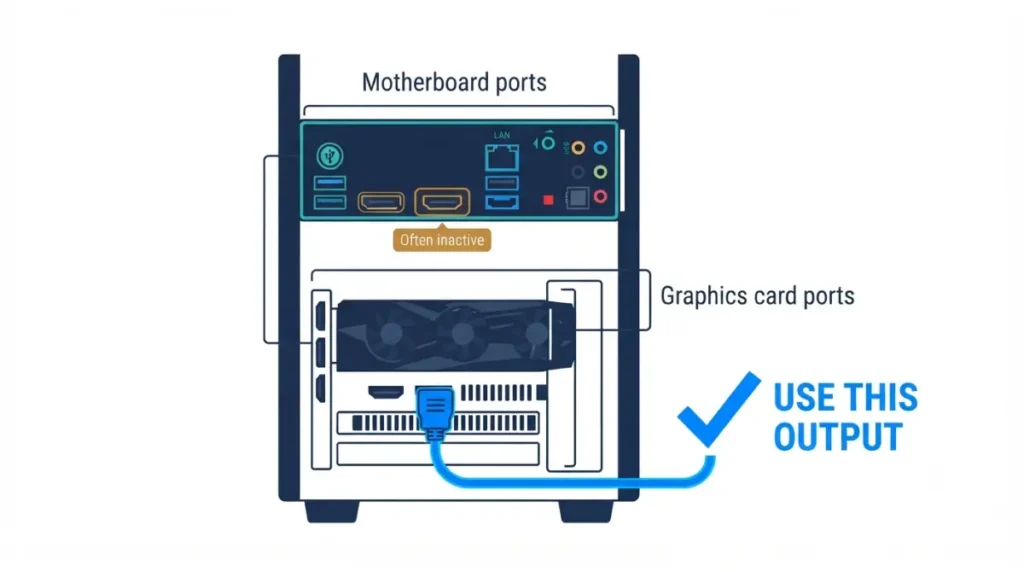
If a dedicated graphics card is installed, the simplest fix is to move the monitor cable to the card. Its ports sit on the slot bracket lower in the case, not on the rear I/O panel.
Why the board ports go dark
On many boards, the integrated output only runs alongside a card once you enable it. ASUS, for example, notes that the iGPU driver can fail to install with a card connected unless multi-monitor support is turned on in BIOS.
Using both: iGPU multi-monitor and primary display settings
For ASUS Intel boards, ASUS’s iGPU Multi-Monitor setup steps give the path: Advanced → System Agent (SA) Configuration → Graphics Configuration → iGPU Multi-Monitor → Enabled, then F10 to save. Other brands use different names, so search your manual for “integrated graphics” or “primary display.”
💡 Pro Tip: If you only need one screen, skip the BIOS and use the graphics card’s output.
Can your board’s port drive your monitor?
Even with a working iGPU, the port itself has limits.
Boards without usable video outputs
Not every motherboard has rear video outputs. If the back-panel diagram in your manual shows no HDMI, DisplayPort, or display-capable USB-C, the iGPU has nowhere to send a picture. AMD lists USB Type-C DisplayPort Alt Mode support on the 9700X, but a board’s USB-C port carries video only if its manual says so.
HDMI and DisplayPort version limits
Each port has a maximum resolution and refresh rate, set by its HDMI or DisplayPort version and the board’s design. A 4K or high-refresh monitor may stay blank or fall back to a lower mode if it asks for more than the port supports.
🧩 Compatibility Check: Find the display-output line on your board’s spec page or in its manual, then fill in this worksheet.
Rule out the cable, port, and monitor in 5 minutes
Change one thing at a time so you know which fix worked.
Swap one thing at a time
- Power down, then reseat the display cable firmly at both ends.
- Swap the cable, ideally for a different type. ASUS’s no-display troubleshooting guide recommends this to rule out a damaged cable.
- Remove docks, dongles, and adapters, which Microsoft lists as common sources of conflicts.
Check the monitor’s input and another device
- Select the exact input you’re plugged into from the monitor’s menu.
- Connect the monitor to another computer. If it stays blank there, the monitor or cable is at fault.
Still nothing at all? The no-POST branch
If no port anywhere shows a picture, check your motherboard’s debug LEDs to find the no-POST cause before touching display settings.
Fix BIOS and Windows settings that block the port
If the hardware checks out, a setting is the likely cause.
Windows shows “Microsoft Basic Display Adapter”
Open Device Manager → Display adapters. A generic Microsoft entry instead of Intel or AMD graphics means the graphics driver needs installing from the CPU maker. Then press Win+P and choose Extend; Microsoft’s external monitor troubleshooting page also lists Win+Ctrl+Shift+B to reset the graphics driver.
Clearing CMOS the way your manual says
Clearing CMOS resets BIOS settings to defaults. Methods vary by board, so follow your manual’s exact procedure with the PC unplugged.
When a new CPU needs a BIOS update
A board whose BIOS predates your CPU may not boot it. Check whether your board’s BIOS supports your CPU on its CPU support list.
⚠️ Watch Out: An interrupted or wrong BIOS update can leave a board unable to boot. Use only your board maker’s file and method, back up your data first, and contact their support if unsure.
Bent pins or a damaged port: when to stop and get help
Physical damage is the one cause you shouldn’t fix yourself.
Signs the port is physically damaged
Bent or pushed-in pins, a loose connector, or a cable that won’t seat all point to port damage. ASUS recommends sending the system for repair.
Warranty and repair routes
✅ Do This: Contact your motherboard maker’s support or an authorized service center and ask whether port damage is covered. Meanwhile, a graphics card’s output works as an alternative.
Motherboard HDMI no-display questions
1. Why is there no display from my motherboard HDMI?
Usually your CPU lacks integrated graphics, a graphics card has taken over output, or the cable or monitor input is wrong.
2. Do Intel F and KF processors work with motherboard HDMI?
No. Intel’s spec page for the Core Ultra 7 265KF lists zero supported displays, so motherboard HDMI stays blank without a graphics card.
3. Do Ryzen 9000 CPUs have integrated graphics for motherboard HDMI?
The Ryzen 7 9700X lists AMD Radeon Graphics. F models like the Ryzen 5 7500F require a discrete graphics card instead.
4. Should I plug my monitor into the GPU or the motherboard?
With a graphics card installed, plug into the card. Motherboard HDMI usually needs a BIOS multi-monitor setting to work alongside it.
5. How do I enable motherboard HDMI with a graphics card installed?
On ASUS Intel boards, enable iGPU Multi-Monitor under System Agent Configuration and Graphics Configuration. Other brands name it differently; check your manual.
6. Why does motherboard HDMI show nothing on my high-refresh monitor?
Each motherboard HDMI port has a maximum resolution and refresh rate. Your board manual lists it; compare it with your monitor’s mode.
7. Can a bad cable cause no display from motherboard HDMI?
Yes. Swap the cable, ideally for another type like DisplayPort, and remove adapters, which Microsoft lists as common conflict sources.
8. Will clearing CMOS fix no display from motherboard HDMI?
It can, by resetting a wrong display setting to defaults, using your motherboard manual’s exact method with the PC unplugged. Contact the board maker’s support if the manual is unclear.
9. Does a new CPU need a BIOS update before motherboard HDMI works?
If the board’s BIOS predates your CPU, it may not boot at all. Check the board’s CPU support list for the minimum version. Update only with the board maker’s own file and method, after backing up.
10. Is my motherboard HDMI port broken if the pins look bent?
Bent or pushed-in pins suggest physical damage to the motherboard HDMI port, and ASUS recommends repair over DIY fixes. Contact the board maker’s support about warranty coverage.
The fastest path back to a picture
Check your exact CPU’s spec page first, then move the cable to your graphics card if you have one. After that, compare port limits and work through settings. If your CPU has no iGPU and you’re adding a card, confirm graphics card and motherboard slot compatibility. For the full pre-order checklist, see getting motherboard compatibility right before you order. Every spec here comes from official manufacturer documentation.