How to Install a GPU Step-by-Step, From Slot to Monitor

Installing a GPU starts at the primary x16 slot, closest to the CPU. Expect Microsoft’s basic display driver on first boot until the maker’s driver is in.

Table of Contents
Seat the card in the primary PCIe x16 slot, which is the one closest to the CPU in NVIDIA’s RTX 5070 Founders Edition quick start guide. Then screw its bracket to the case and connect every power input your card’s documentation lists. Finally, plug the monitor into the card’s own outputs and install the driver from the GPU maker’s site.
Those steps cover a first card in a new build, or in a PC that has been running on integrated graphics. Replacing an older card adds a driver cleanup, and changing a graphics card covers it for every brand pair.
Four documents to open before the case comes off
Every answer this install depends on is already printed in the boxes on your desk.
| Document | What it answers | Where to look |
|---|---|---|
| Graphics card quick start guide | Minimum PSU, supported power cables, card size | System Specifications block on the first page |
| Motherboard manual | Which slot carries the graphics card and what shares its lanes | Expansion-slot page |
| PSU manual | Which modular cables are 8-pin PCIe or 12V-2×6 | Cable and connector table |
| Monitor manual | Which input matches your cable | Inputs or connections page |
Before you buy: a front radiator or thick front fans can shorten the card length your case accepts. Run the numbers in will a GPU fit your case before you order.
On the RTX 5070 Founders Edition, that first page asks for a power supply rated 650 W or more. The card measures 244 x 112 x 41 mm (9.6 x 4.4 x 1.6 in). It takes two separate 8-pin cables through NVIDIA’s adapter, or one 16-pin cable rated 360 W or more.
Where the official install guides disagree
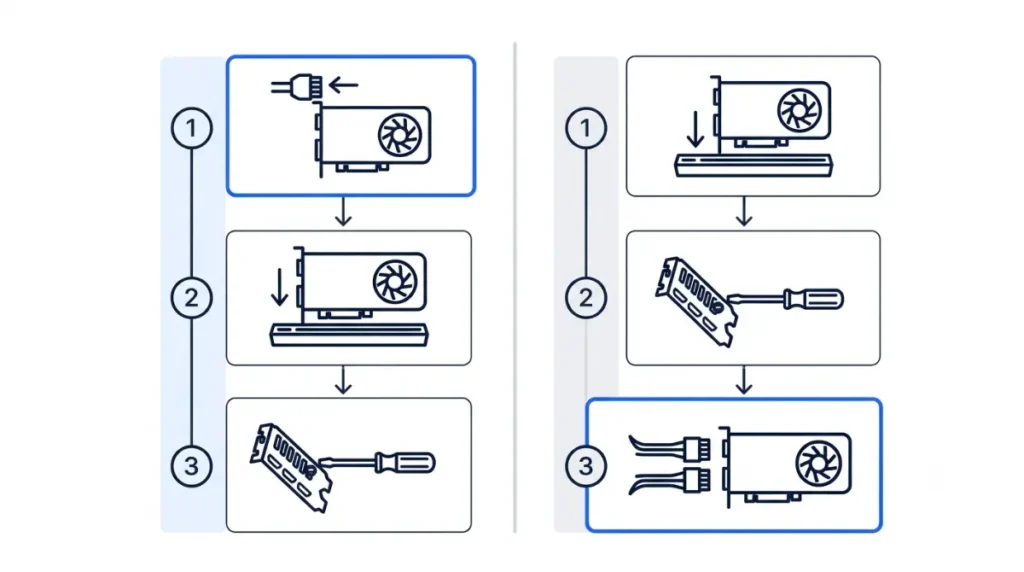
NVIDIA has you plug the power adapter into the card before it goes in the slot, while AMD and ASUS connect power after the card is seated. NVIDIA’s reasoning is that the plug can be pushed in firmly and evenly while you can still see it.
| Step | NVIDIA RTX 5070 and 5090 Founders Edition | AMD RX 7800 XT (previous generation) | Intel Arc B-series | ASUS cards and boards |
|---|---|---|---|---|
| Slot | Primary PCIe x16, closest to the CPU | A free PCIe x16 graphics slot | Full-size PCIe 3.0 or newer x16 | The board’s PCIe slot, latch locked |
| Power timing | Adapter into the card, then the card into the board | Seat the card, connect power, then fasten the bracket | Not stated | Seat and screw down the card, then connect power |
| Cables | At least two (5070) or four (5090) separate 8-pin cables on the adapter | Not stated | 600 W PSU minimum with a PCIe 8-pin cable | One PCIe cable per connector, no splitter feeding two |
| Firmware first | None stated | Disable onboard graphics unless you use it for extra monitors | CSM off, UEFI boot on, Above 4G Decoding and Re-Size BAR on | Not stated |
| Handling | Never install with the I/O bracket facing down | Wait about 20 seconds after unplugging before removing parts | Not stated | Remove protective film; keep the metal tab off the board |
| Driver | NVIDIA App | AMD driver and Radeon Software from AMD’s site | Intel graphics driver | Points to its driver FAQ |
Sources: RTX 5070 and RTX 5090 Founders Edition quick start guides; AMD RX 7800 XT quick setup guide; Intel Arc desktop quick start guide; ASUS graphics card installation FAQ.
Where your own card’s guide disagrees with this table, follow your guide. AMD publishes no reference RX 9000 card guide, so its column comes from the previous-generation RX 7800 XT setup guide. For a Radeon RX 9000 card, the board partner’s quick installation guide in the box fills that role.
Slot, bracket and power, in the order your guide gives
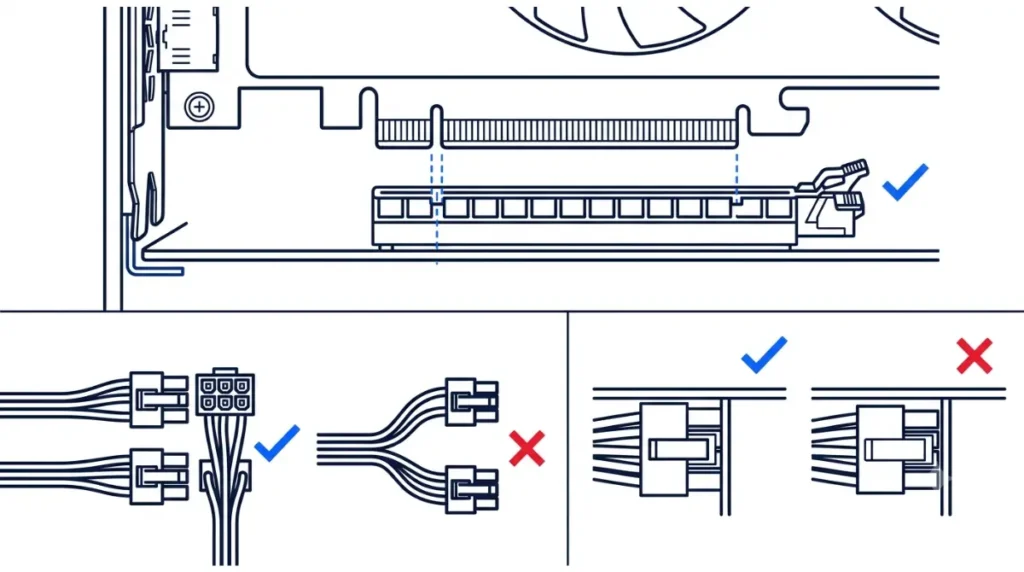
Switch the PSU off and pull its power cord before you open the case. The steps below follow ASUS’s installation FAQ, with NVIDIA’s Founders Edition step placed where NVIDIA puts it.
- Turn off the PSU and unplug its cord. AMD’s setup guide adds a wait of about 20 seconds before you remove anything from the motherboard.
- Take out the expansion-slot covers that line up with the slot. NVIDIA’s two-slot Founders Edition cards need two removed.
- Peel off any clear protective film. ASUS says heat can leave residue if it stays on.
- Founders Edition only: push the 16-pin adapter into the card now, until it is fully inserted and sits flush with the receptacle.
- Line up the notch in the card’s gold contacts with the key in the slot. Press straight down until the latch clicks and locks on its own.
- Guide the card’s metal bracket tab into the gap between motherboard and case so it never touches the board’s surface.
- Screw the bracket to the case.
- Connect each power input with its own PSU cable. ASUS warns that feeding two inputs from the two ends of one splitter cable may damage the card.
Stop if: a plug won’t sit flush, or a cable or connector looks melted, discolored or bent. Unplug the PC and contact the card or PSU maker with both model numbers. Which cable your card accepts is covered in 12V-2×6 vs 8-pin power cables.
What should you see on first boot?
Fans that stay still at the Windows desktop are normal on many cards. On ASUS cards with 0dB technology, the fans stop while the GPU is cool and start again as its temperature rises (ASUS fan FAQ).
Connect the monitor cable to one of the card’s outputs (why the board’s own port goes dark). Windows then starts on a generic driver. Windows uses its built-in Microsoft Basic Display Adapter driver when the maker’s own driver isn’t available or installed. If that name appears under Display adapters in Device Manager, the generic driver is the one running (Microsoft support page).
Intel Arc owners set the firmware first. Intel’s quick start asks for CSM off with UEFI boot on, plus Above 4G Decoding and Re-Size BAR enabled.
The maker’s driver replaces the generic one:
- NVIDIA’s Founders Edition guides point to the NVIDIA App.
- AMD’s driver page offers an Auto-Detect and Install tool that identifies the AMD graphics card and the installed Windows version, then offers the latest compatible official driver (AMD’s driver page).
- On Intel Arc, the installer puts the Intel graphics driver on together with Arc Control, and the system is rebooted once installation finishes (Intel’s Arc install steps).
After that restart, Display adapters lists the card by its own model name.
Black screen after installing the card
If the monitor stays dark, work from the quickest check to the slowest.
- The monitor input matches the port you used, and the cable sits in the card rather than the motherboard.
- Every power plug is seated. On ASUS cards with an LED at the power connector, a steady red light points at that cable, and ASUS suggests trying a replacement.
- With the PC unplugged, reseat the card and its power connectors. This is the first fix in ASUS’s FAQ.
- If your motherboard has a VGA debug LED, look up what a lit one means in its manual.
If the screen is still black after all four, contact the card maker’s support with the model and serial numbers. AMD’s setup guide notes both are needed for technical support.
BIOS updates and second slots
Do you need a BIOS update before installing a GPU?
The NVIDIA and AMD guides in the table list none. Intel asks Arc owners to use the board’s latest firmware that supports Resizable BAR, installed with the board maker’s own update method.
Can the card go in the second full-length slot?
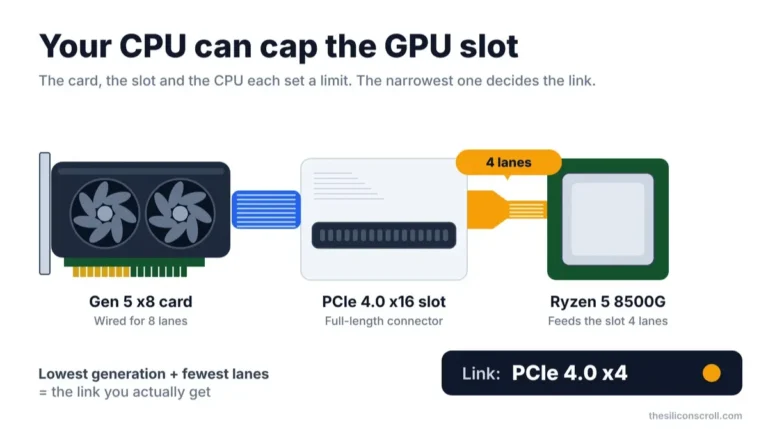
NVIDIA’s guides name the slot closest to the CPU. Your motherboard manual’s expansion-slot table lists how many lanes each slot gets, and how PCIe lane sharing works explains why a lower slot can run with fewer.
Next, switch on Resizable BAR in the BIOS
Once Device Manager shows the card by its own name, one firmware setting is left. Intel says Resizable BAR must be on for optimal performance with Arc cards. Enabling Resizable BAR in the BIOS starts with the boot-drive check that decides whether you can turn CSM off safely.