Clear GPU Compatibility Checks for Your Slot, Case and PSU
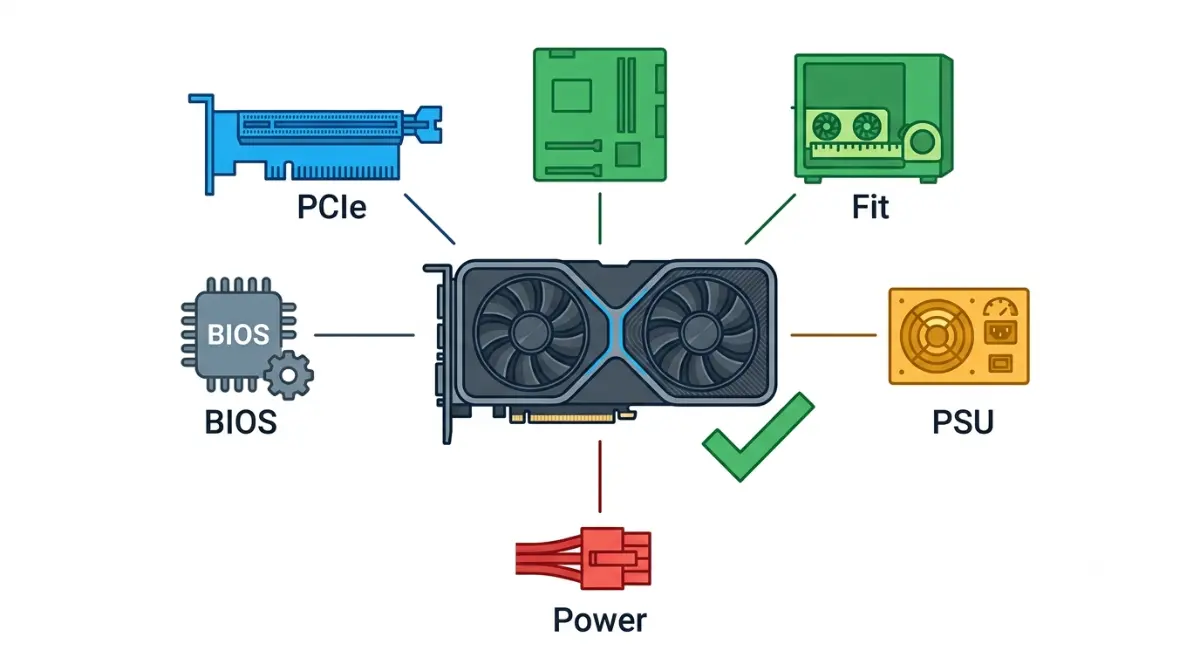
Table of Contents
Will this graphics card work in my PC? Start here
A graphics card works in your PC when five specs line up, and each can be checked in one sitting before you pay.
The five specs that decide whether a GPU works
Match five specs before you buy: the PCIe slot, the card’s size, PSU wattage, the power connector, and firmware settings.
- PCIe slot: generation and lane width against your board.
- Card size: length, thickness and cable room against your case.
- PSU wattage: the maker’s required system power for your card.
- Power connector: 8-pin or 12V-2×6, matched to your power supply.
- Firmware: BIOS, boot-mode and Resizable BAR settings the card lists.
Find your situation and jump to your check
- First build: take the checks in order.
- PC won’t POST or shows no signal: jump to troubleshooting.
- Upgrading an older system: check PSU wattage and connector first.
- Tight budget or small case: start with size and PSU wattage.
- Eyeing a 12V-2×6 card: read the connector section.
For the board side of this job, see how motherboard compatibility works across sockets, BIOS and lanes.
What this guide verifies, and how (we don’t test hardware)
Every figure comes from a named manufacturer page or standards document retrieved October 14, 2026. We did not install, fit-check or benchmark any card. Where sources conflict, the text says so.
ℹ️ Risk Note: This guide touches GPU power connectors, BIOS settings and costly purchases. Use only cables the GPU and PSU makers approve, and stop and contact the maker if you see heat damage. Back up your data before changing BIOS or boot mode, and follow your motherboard maker’s instructions. For used cards, check the seller’s warranty and return terms.
Does my motherboard’s PCIe slot limit my GPU?
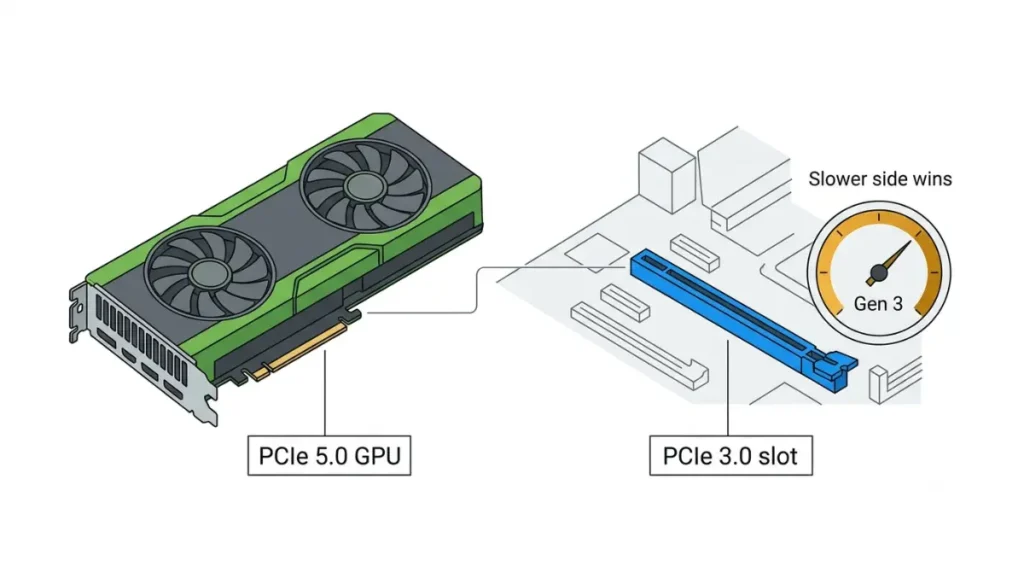
Your slot rarely stops a card from working, but it can change how fast the card runs.
PCIe 5.0 card in a PCIe 4.0 or 3.0 slot: what changes
Yes, it works. PCIe is backward compatible: a PCIe 5.0 card runs in a PCIe 4.0 or 3.0 slot at the slower generation’s speed. PCI-SIG’s PCIe 5.0 announcement (May 29, 2019) says the standard “maintains backwards compatibility with PCIe 4.0, 3.x, 2.x and 1.x.”
| Card link | Gen 5 slot | Gen 4 slot | Gen 3 slot | Key Detail |
|---|---|---|---|---|
| Gen 5 x16 (RX 9070 XT) | Gen 5 x16 | Gen 4 x16 | Gen 3 x16 | Slower side wins |
| Gen 5 x8 (RTX 5060 Ti) | Gen 5 x8 | Gen 4 x8 | Gen 3 x8 | Only eight lanes |
Source: PCI-SIG; AMD and Puget Systems pages, retrieved October 14, 2026. Each result is the lower of card and slot.
Independent tests of the RTX 5060 Ti’s x8 link include TechPowerUp’s PCI-Express x8 scaling review. ComputerBase’s results, as reported by TechRadar, show the 8 GB model losing performance on PCIe 4.0 in some games; Hardware Unboxed’s, as summarized by PC Games Hardware, show small PCIe 4.0 losses and larger PCIe 3.0 ones. Results vary by game, model and setup, so this guide quotes no single percentage.
🧩 Compatibility Check: Find your card’s lane width on its maker’s spec page. If it is x8 and your board is PCIe 3.0, read an independent test of that exact model before you buy.
x16 vs x8: link width on the card and the slot
AMD lists the RX 9070 XT, RX 9070 and RX 9060 XT as PCIe 5.0 x16; Intel lists the Arc B580 as PCI Express 4.0 x8. NVIDIA’s RTX 50 pages list Gen 5 but no width, and Puget Systems lists the RTX 5060 Ti as 5.0 x8. Intel also warns that an Arc card paired with a Ryzen 8500G has reduced performance because of PCIe lane limits.
Slots that share lanes with M.2 or other ports
Whether a slot drops from x16 to x8 depends on your exact board, never its chipset alone. Your manual’s lane-sharing footnotes decide it; how PCIe lane sharing works on your board shows where to find them. If a GPU reads x8, check which M.2 slot keeps the GPU at all sixteen lanes.
🔍 Why It Works: A CPU has a fixed pool of lanes that the board divides between the GPU slot and M.2 slots. On some boards, filling an M.2 slot takes lanes from the GPU slot.
Which slot to use for the GPU
Use the slot your manual calls the primary graphics slot, since lower slots may be wired with fewer lanes. To judge whether generation matters for you, see whether you need a PCIe 5.0 motherboard.
Will this GPU physically fit in my case?
A card that fits your slot can still fail to fit your case, and listed length is only the start.
Length: the card plus cable room (a worked example)
Check fit in three steps:
- Get the exact model’s length, cooler included, from its maker’s page.
- Add room for power cables.
- Compare the total with your case’s maximum GPU length, minus any front fans or radiator.
📊 Spec Check: NVIDIA’s RTX 5080 page (retrieved October 14, 2026) lists the Founders Edition at 304 mm long and advises 36 mm extra for power cables. 304 + 36 = 340 mm of straight-line room.
That is one reference card; NVIDIA’s page notes that specifications vary by add-in-card maker.
Thickness: why a “2-slot” spec can need three slots
On the same page, the specification table says 2-slot, while the clearance guide says to allow a 3-slot card (61 mm). Read the guide, not just the table. GPU length, slot width and clearance covers how slot width is counted.
Height, front radiators and drive cages
Your case maker’s page lists a maximum GPU length; check whether it changes with a front radiator or drive cage.
What sits beside the card: M.2 heatsinks and lower slots
A thick cooler can cover the slots below it. Your board manual’s slot diagram shows which M.2 slots, headers and ports sit under the card.
🧩 Compatibility Check: Compare your case maker’s “maximum GPU length” with your board manual’s slot diagram.
How many watts does my power supply need for this GPU?
Your power supply must meet the GPU maker’s published number for your exact card, which is not the card’s own power draw.
Board power vs “required system power”: two different numbers
Use the GPU maker’s required system power for your exact card as the floor. NVIDIA lists Total Graphics Power for the card and Required System Power for the PC; AMD and Intel list board power and a minimum PSU.
🔍 Why It Works: Required system power describes a whole reference PC, not just the card. NVIDIA’s footnote says its minimum assumes a PC with a Ryzen 9 9950X processor and that requirements can differ by configuration.
What NVIDIA, AMD and Intel actually publish
| Card | Board power | Vendor PSU figure | Key Detail |
|---|---|---|---|
| RTX 5080 | 360 W | 850 W required | Ryzen 9 9950X basis |
| RX 9070 XT | 304 W typical | 750 W minimum | 2×8-pin |
| Arc B580 | 190 W | 600 W minimum | 1×8-pin |
Source: NVIDIA pages; AMD’s RX 9070 XT specifications; Intel Arc B580 page, retrieved October 14, 2026. Reference designs.
Why third-party wattage tables disagree
Even official pages disagree. NVIDIA’s RTX 5090 table lists 1000 W required system power, while a separate power-supply block on the same page reads “850W Minimum.” Retailer guides, including Evetech’s, quote 700 W, 750 W and 800 W for the RX 9070 XT; AMD’s page lists 750 W. Use the model-level table, then confirm on your card maker’s page.
When your CPU is hungrier than the vendor’s test system
If your CPU draws more than the maker’s reference system, the published figure may not cover you. Ask the PSU maker’s support rather than relying on a formula.
✅ Do This: Open your card maker’s spec page, copy the required system power, and compare it with the wattage on your PSU’s label.
Which GPU power connector do I need: 8-pin or 12V-2×6?
The connector decides which cable path your GPU and power supply can use, so settle it before you order.
8-pin, 12VHPWR and 12V-2×6: what’s the difference
12V-2×6 is the revised 16-pin connector. Intel’s ATX Version 3 design guide (Rev. 2.1a, ATX 3.1) says it “replaces the 12VHPWR connector” and that new power supplies “should mount only the 12V-2×6 connector.”
| Connector | Maker-page examples | Key Detail |
|---|---|---|
| 8-pin PCIe | RX 9070 XT: 2×8-pin; RTX 5060: 1×8-pin | Count varies by card |
| 12VHPWR | Older 16-pin name | Deprecated in Intel’s guide |
| 12V-2×6 | RTX 5090: one 600 W Gen 5 cable | NVIDIA bundles an 8-pin adapter |
Source: Intel ATX guide; NVIDIA and AMD pages, retrieved October 14, 2026.
Do I need an ATX 3.1 PSU for a 12V-2×6 card?
NVIDIA’s spec pages, such as the RTX 5050’s, recommend a PCIe CEM 5.1 compliant power supply. Intel’s guide says a supply with a 12V-2×6 connector must set the SENSE signals correctly. The sources we reviewed do not settle whether every ATX 3.0 model does.
🧩 Compatibility Check: Look for PCIe CEM 5.1 or ATX 3.1 on your PSU’s spec page, or ask the PSU maker whether your exact model meets it.
Adapters and cables: follow the GPU and PSU makers
Use only cables that both makers approve for your exact card and PSU model.
⚠️ Watch Out: Discoloration, a burning smell or a loose-fitting plug means stop using the card. Contact the GPU or PSU maker’s support or an authorized service center, and ask whether your cable is approved for your card and PSU.
What’s reported about melted connectors, and what isn’t known
PCWorld reported melted RTX 5090 connectors in October 2025. Club386 reported in June 2026 that its RTX 5090 Founders Edition and a 1,000 W power supply were destroyed, and argued the connector design is at fault. Neither report cites a confirmed cause from a maker or standards body.
These reports concern one card class, not every 16-pin card. PCWorld advises regular checks for heat or discoloration; follow your GPU and PSU makers’ instructions, and contact them if anything looks damaged.
Do I need a BIOS update or Resizable BAR for this GPU?
Some cards list firmware settings as requirements, and Intel’s Arc cards are the clearest case.
Resizable BAR: where it’s listed as a requirement
Intel’s Arc system requirements say Resizable BAR or Smart Access Memory “must be enabled for optimal performance in all applications.” Boards may label it Re-Size BAR, Smart Access Memory or Clever Access Memory.
| Vendor | What its page says |
|---|---|
| Intel Arc | Must be enabled for optimal performance |
| NVIDIA RTX 50 | Resizable BAR: Yes |
| AMD RX 9070 series | Lists AMD Smart Access Memory |
Source: vendor product pages, retrieved October 14, 2026.
UEFI, GPT and CSM: the boot-mode check for Intel Arc
Intel says the Compatibility Support Module (CSM) or Legacy Mode must be disabled and UEFI boot mode enabled, with Above 4G Decoding and Re-Size BAR set to Enabled. It also says Windows should use UEFI boot mode and GPT.
⚠️ Watch Out: Changing boot mode on an existing install can stop Windows from starting. Back up your data and follow your motherboard maker’s and Microsoft’s instructions, or contact motherboard support.
When the motherboard maker says to update the BIOS first
Your board’s support page lists the BIOS it needs; why BIOS version matters when you swap parts explains how to read it. Use only the maker’s file and method, and ask support whether your BIOS lists this GPU and what the recovery option is.
Is my CPU too old for this card?
Intel lists Arc B-Series platforms: Core Ultra and 10th to 14th Gen Core on 400 to 800 Series boards (10th and 11th Gen support depends on the system maker), and Ryzen 7000, 8000 and 9000 on AMD 600 Series boards. For other cards, check the maker’s page and your BIOS notes.
GPU compatibility matrix: all five specs side by side
This matrix puts published numbers for current cards in one place, so you can compare them with your case and PSU.
How to read the matrix (reference vs partner cards)
Figures are reference designs; partner cards can differ in length, thickness and connector. The slot side depends on your chipset: which AM5 chipsets give the GPU slot PCIe 5.0 and Intel Z890, B860 and H810 compared.
The matrix: RTX 50, Radeon RX 9000 and Intel Arc
| Card | Board power | Vendor PSU figure | Reference connector |
|---|---|---|---|
| RTX 5090 | 575 W | 1000 W | 4×8-pin adapter or 600 W cable |
| RTX 5080 | 360 W | 850 W | 3×8-pin adapter or 450 W+ cable |
| RTX 5070 Ti | 300 W | 750 W | 2×8-pin adapter or 300 W+ cable |
| RTX 5070 | 250 W | 650 W | 2×8-pin adapter or 300 W+ cable |
| RTX 5060 Ti | 180 W | 600 W | 1×8-pin or 300 W+ cable |
| RTX 5060 | 145 W | 550 W | 1×8-pin or 300 W+ cable |
| RTX 5050 | 130 W | 550 W | 1×8-pin or 300 W+ cable |
| RX 9070 XT | 304 W | 750 W | 2×8-pin |
| RX 9070 | 220 W | 650 W | 2×8-pin |
| RX 9060 XT | 150 W (8 GB), 160 W (16 GB) | 450 W | 1×8-pin |
| Arc B580 | 190 W | 600 W | 1×8-pin |
| Card | PCIe as listed | Reference size | Key Detail |
|---|---|---|---|
| RTX 5090 | Gen 5 | 304 × 137 mm | Page also shows “850W Minimum” |
| RTX 5080 | Gen 5 | 304 × 137 mm | 2-slot table, 3-slot guide |
| RTX 5070 | Gen 5 | 242 × 112 mm | 2-slot |
| RTX 5070 Ti, 5060 Ti, 5060, 5050 | Gen 5 (5060 Ti: x8) | Varies | Width: Puget Systems |
| RX 9070 XT, 9070, 9060 XT | 5.0 x16 | Not listed | Smart Access Memory |
| Arc B580 | 4.0 x8 | 272 × 115 mm | 2-slot |
Source: NVIDIA, AMD and Intel pages; Puget Systems listing, retrieved October 14, 2026. Board power is TGP (NVIDIA), typical board power (AMD) or TBP (Intel); PSU figures may differ by configuration.
Your pre-purchase compatibility worksheet
Write these five lines for your parts before checkout:
- Slot: card generation and width against your board.
- Size: card length plus cable room against your case.
- PSU: required system power against your PSU’s label.
- Connector: the cable your PSU provides against the card’s need.
- Firmware: BIOS and boot-mode notes on the card’s page.
My new GPU won’t fit or won’t boot: what to check first
Most failed first boots trace to a short list of checks, and the safest ones come first.
No signal after install: cables, ports and seating
ASRock’s support FAQ lists checks like these:
- Confirm the monitor cable runs from the card’s outputs, not the motherboard’s; no display from motherboard HDMI explains why.
- Check the monitor’s input setting.
- Make sure the card’s power cable is well connected.
- Try another PCIe slot, if your board has one.
What a motherboard debug LED means covers the VGA light.
Boots, then crashes under load: power checks
Compare your PSU’s rated wattage with the maker’s required system power for your exact card. If it is lower, start there.
Slot runs slower than expected: lane and BIOS checks
Read your board manual’s lane-sharing notes for the slot, then check the BIOS notes on your board’s support page.
When to stop and contact the maker
Stop if you notice heat, a burning smell or discolored plugs. Contact the GPU or board maker’s support or an authorized service center, and ask about warranty terms. Don’t open the card.
GPU compatibility questions, answered briefly
1. Will a PCIe 5.0 GPU work in a PCIe 4.0 slot?
Yes. A PCIe 5.0 GPU works in a PCIe 4.0 slot because PCI-SIG says 5.0 keeps backwards compatibility; it runs at the slower speed.
2. Does the RTX 5060 Ti use only eight PCIe lanes?
Puget Systems lists the RTX 5060 Ti as PCI Express 5.0 x8. NVIDIA’s page lists the generation but not the width.
3. How do I check if a GPU fits my case?
Add 36 mm of cable room to the card’s length, as NVIDIA’s RTX 5080 guidance does, then compare with your case’s maximum GPU length.
4. How many watts does an RTX 5080 need?
NVIDIA lists 360 W total graphics power and 850 W required system power for the RTX 5080, based on a Ryzen 9 9950X system.
5. What power supply does the RX 9070 XT need?
AMD’s page lists 304 W typical board power and a 750 W minimum PSU with two 8-pin connectors. Retailer guides quote other wattages.
6. Is 12V-2×6 the same as 12VHPWR?
Not exactly. Intel’s ATX 3.1 guide renames 12VHPWR to 12V-2×6 and says new power supplies should mount only 12V-2×6.
7. Can I use an ATX 3.0 PSU with a 12V-2×6 GPU?
For a 12V-2×6 GPU, NVIDIA recommends a PCIe CEM 5.1 compliant PSU. Ask your PSU maker whether your ATX 3.0 model meets it.
8. Does Intel Arc need Resizable BAR?
Intel says Resizable BAR or Smart Access Memory must be enabled for optimal performance on Arc cards.
What to check next before you buy
You now have the numbers that decide most GPU purchases; the rest is matching them to your parts.
Run the five-check worksheet
Fill in the worksheet above, and download the printable version before checkout.
Two guides cover what comes next: GPU length, slot width and clearance and how PCIe lane sharing works on your board.
For the full board side, read how motherboard compatibility works across sockets, BIOS and lanes.
The most important safeguard: use only maker-approved cables, back up your data before any BIOS or boot-mode change, and contact the GPU, PSU or board maker if anything is unclear.