Board HDMI Dead? Plug Into the GPU Monitor Port Instead

The GPU monitor port sits on the card’s horizontal bracket, and Intel says some desktops switch board video off once a card is detected. See which works.
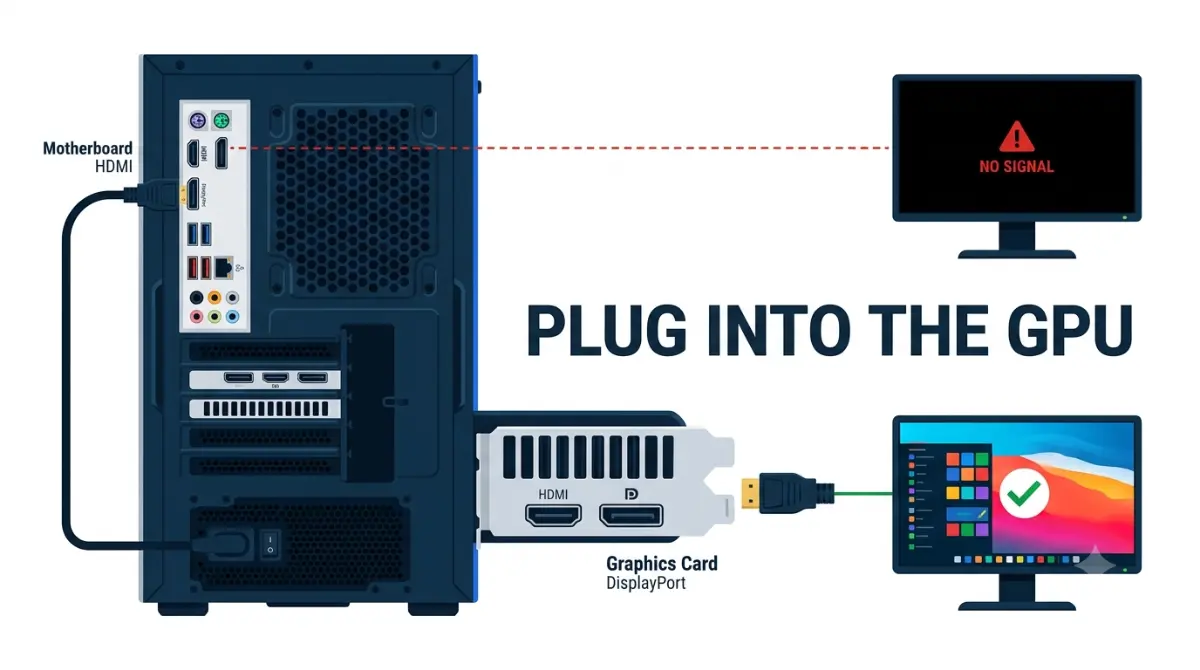
Table of Contents
Where to plug your monitor when you have a graphics card
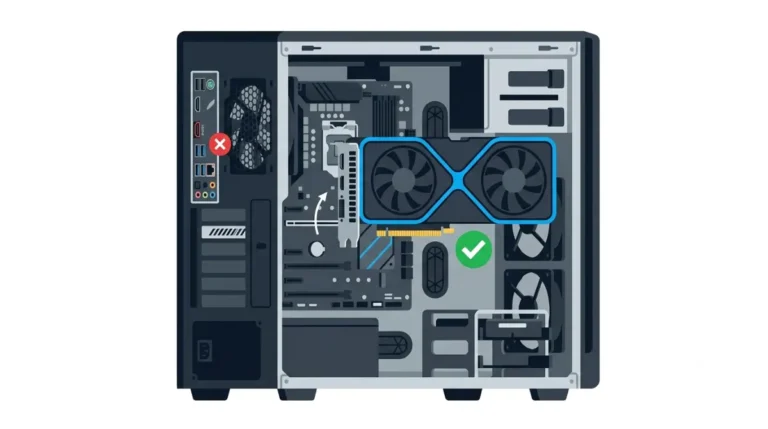
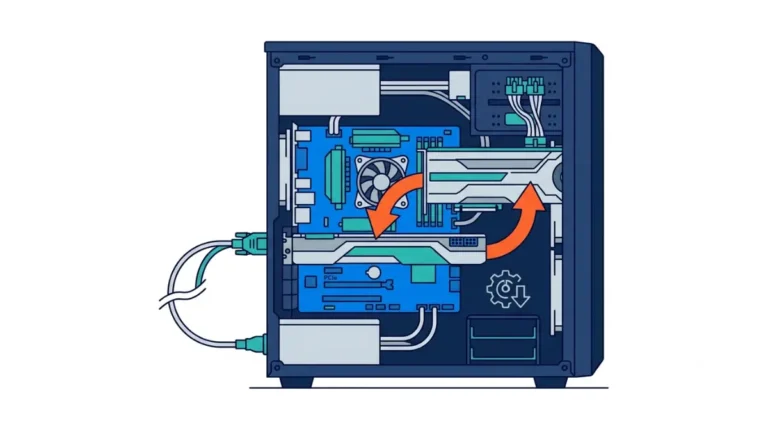
Plug your monitor into the graphics card, not the motherboard. The card’s display outputs usually sit on a horizontal bracket lower on the case. Many boards switch their own video ports off once a card is installed, so a cable there shows no signal.
If your screen is black right now
Move the cable to the card and match the monitor’s input, then see the no-signal checks.
If you’re adding a second monitor or have no card yet
See the motherboard-port section. No card? Check your CPU’s graphics first.
Why your motherboard HDMI shows nothing with a GPU installed

Motherboard video ports carry the integrated graphics built into some CPUs, not graphics of their own.
Board ports belong to the CPU, not the board
Intel says the board’s video port uses only the integrated graphics. If that iGPU is off or missing, the port has nothing to send.
What “disabled by default” means
Intel notes that some desktops automatically turn off integrated graphics when they detect a discrete graphics card; a BIOS setting can re-enable it. ASUS says its AM5 and Intel 800-series boards support dual display by default. For the full fix, see why a motherboard HDMI port shows no display.
🔍 Why It Works: A monitor shows whatever the processor wired to its port draws: the card’s ports connect to the card, the board’s to the CPU.
Does your CPU even have integrated graphics?

One spec-page field tells you whether board ports can ever work.
Intel: look for the F suffix
Intel says desktop Core processors with F in the suffix need a discrete graphics card and won’t boot from the board’s graphics port; their spec pages omit Processor Graphics.
AMD: read the Graphics Model field
The previous-generation Ryzen 5 5600X lists “Discrete Graphics Card Required” as its Graphics Model.
Prebuilts like the Steam Machine
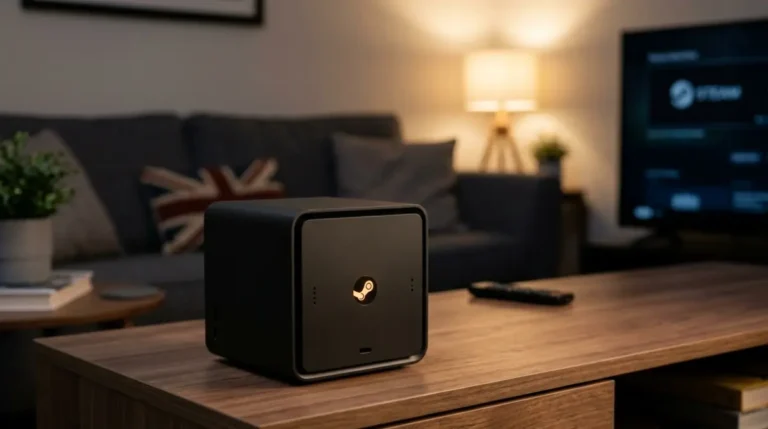
The Steam Machine has no board video ports; its DisplayPort 1.4 and HDMI 2.0 outputs both come from its GPU, per our Steam Machine spec breakdown.
Port Decision Matrix
| Your setup | Board ports | Card ports | Key Detail |
|---|---|---|---|
| No-iGPU CPU + card | Never work | Use these | Intel F/KF; AMD “Discrete Graphics Card Required” |
| iGPU CPU + card, multi-monitor off | Usually dark | Use these | Common default |
| iGPU CPU + card, multi-monitor on | Extra screen only | Main monitor | Default on ASUS AM5 / Intel 800 |
| Steam Machine | None | DP 1.4, HDMI 2.0 | All outputs on its GPU |
Source: Intel, AMD, ASUS, and Valve official documentation (linked above).
🧩 Compatibility Check: Look up your exact CPU model. No Processor Graphics entry (Intel) or “Discrete Graphics Card Required” (AMD) means only card ports work.
How to find and use the GPU monitor port
Four steps put your monitor on the card:
- Shut down and find the card’s ports on the horizontal bracket.
- Check your card’s spec page for its outputs; pick a cable your monitor accepts.
- Plug in fully at both ends and power on.
- Set the monitor’s input to the exact port you used.
Spot the card’s ports
They run sideways; your card’s spec page shows the layout.
Match the cable to the port
DisplayPort and HDMI plugs differ in shape; never force one.
✅ Do This: Match your card’s listed outputs against your monitor’s manual before buying a cable.
Can a second monitor use the motherboard port?
Yes, if your CPU has integrated graphics and the board allows both at once.
The BIOS option that allows it
Intel says to enable an iGPU multi-monitor setting in the BIOS. ASUS calls it “iGPU Multi-Monitor” on Intel boards and “IGFX Multi-Monitor” on AMD boards, and says its AM5 and Intel 800-series boards don’t need it (ASUS’s iGPU Multi-Monitor steps). Other brands’ labels are in your manual’s BIOS chapter.
When it’s simpler to stay on the card
Enough card outputs? Use them and skip the BIOS change.
How to check Windows is using your graphics card
Windows 11 lets you choose which graphics processor each app uses.
Set GPU preference per app
Go to Start > Settings > System > Display > Graphics, select the app, open its options, and set the graphics preference to High performance. Microsoft says this appears when your PC has more than one graphics processor.
Why the port still matters
The preference picks the processor that draws; the cable picks the one feeding the screen. Point both at the card.
Monitor says no signal after plugging into the GPU
A first-boot black screen is common and usually simple. Check in order:
- The monitor’s input matches your port.
- The cable is seated at both ends; try another.
- A different output on the card works.
- The card’s power cables are connected as its manual shows.
Signs the problem isn’t the port
If no output works, the cause sits earlier in the boot: a new CPU on an older board may need a newer BIOS. Contact your board or card maker’s support with both model numbers.
Frequently asked questions
1. GPU or motherboard port?
Use the GPU monitor port whenever a graphics card is installed; many boards switch their own ports off.
2. Why does motherboard HDMI show no signal?
Motherboard HDMI carries the CPU’s integrated graphics. Many boards disable it once a graphics card is detected, per Intel.
3. Which ports belong to the graphics card?
The graphics card’s ports usually sit on a horizontal bracket lower on the case, below the motherboard’s ports.
4. Do Intel F-series CPUs have integrated graphics?
No. Intel says F-series desktop processors need a discrete graphics card, so only the card’s ports can drive a monitor.
5. How do I check an AMD CPU?
Read the Graphics Model field on AMD’s product page; “Discrete Graphics Card Required” means no integrated graphics.
6. Can I use GPU and motherboard ports together?
Only if the CPU has integrated graphics and the BIOS allows it. ASUS calls it iGPU or IGFX Multi-Monitor.
7. How do I make Windows use my graphics card?
In Settings > System > Display > Graphics, select the app and set its graphics preference to High performance.
8. HDMI or DisplayPort on my GPU?
Use the GPU output that both your card’s spec page and your monitor’s manual list as supported.
9. Still no signal on the GPU?
Check the monitor’s input, swap the cable, try another GPU output, and confirm the card’s power cables.
10. Does the Steam Machine have motherboard video ports?
No. The Steam Machine’s DisplayPort 1.4 and HDMI 2.0 outputs both come from its AMD GPU.
The one-line rule for every build
Plug into the card, check one CPU spec field before trusting board ports, and enable multi-monitor only for a second screen. Installing the card comes first in our guide to installing a graphics card; if the board won’t start, read your motherboard’s debug LEDs. Every claim here is sourced, not bench-tested.