How to change a graphics card without driver conflicts

On an Intel F-series PC, a graphics card change leaves no picture once the old card is out, so its driver goes first. Each brand pair has its own route.
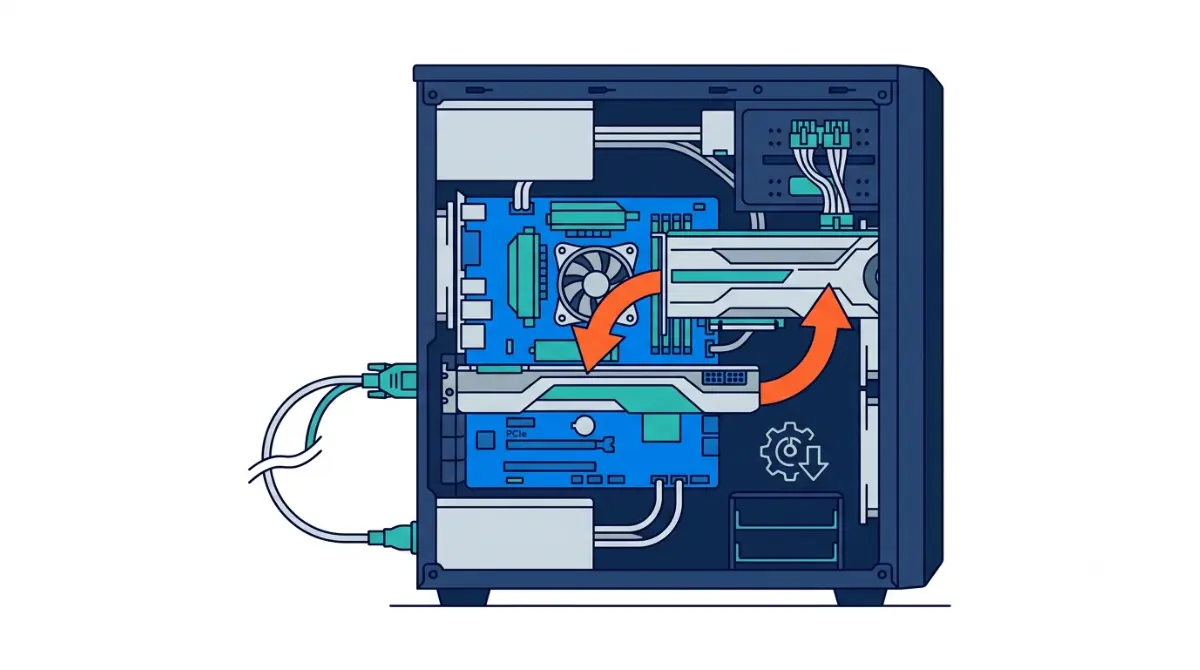
Table of Contents
Switching brands means removing the old vendor’s driver while the outgoing card is still installed, then installing the new vendor’s driver once the replacement is in. For an NVIDIA-to-NVIDIA or Arc-to-Arc swap, the new driver’s clean-install option clears the old one afterward, and AMD’s removal guide has you uninstall AMD Software before the card comes out (AMD support).
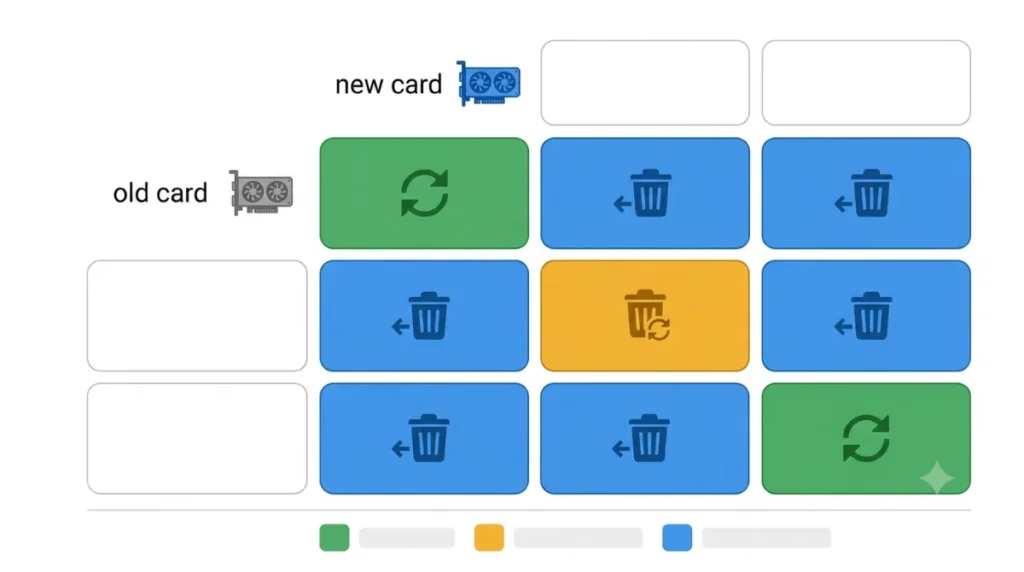
Your old card, your new card: what each pair needs
Find the brand you’re leaving in the first column and read across.
| Swap | While the outgoing card is installed | After the replacement is in | Vendor document |
|---|---|---|---|
| NVIDIA to NVIDIA | Nothing extra | Installer: Custom (Advanced), then Perform a clean installation | NVIDIA manual clean install |
| AMD to AMD | Uninstall AMD Software (export Snap Settings first to keep your settings) | Installer: Custom Install, then Factory Reset (Optional) | AMD removal guide, AMD Software install, Snap Settings |
| Intel Arc to Intel Arc | Nothing extra | Installer: Execute a clean installation | Intel clean installation |
| AMD to NVIDIA or Intel | Uninstall AMD Software; Cleanup Utility if conflicts remain | NVIDIA or Intel installer | Uninstall AMD Software, AMD Cleanup Utility |
| NVIDIA to AMD or Intel | Device Manager: Uninstall device, with driver deletion ticked | AMD or Intel installer | Microsoft display driver steps |
| Intel Arc to AMD or NVIDIA | Intel’s manual uninstall from Device Manager | AMD or NVIDIA installer | Intel clean installation |
Sources: the NVIDIA, AMD, Intel and Microsoft support articles linked in each row.
NVIDIA’s clean installation deletes the installed NVIDIA drivers and cached packages before putting the new one on (NVIDIA support). On AMD, Factory Reset strips every earlier version of the AMD Software package and pauses Windows Updates for a while (AMD support). Intel’s checkbox returns Intel settings to default as well.
Mixing brands is where leftovers matter. Driver files from AMD on an NVIDIA system, or the reverse, can cause problems; the DDU guide doesn’t expect Intel integrated-graphics drivers to conflict with either.
Does your CPU have its own graphics?
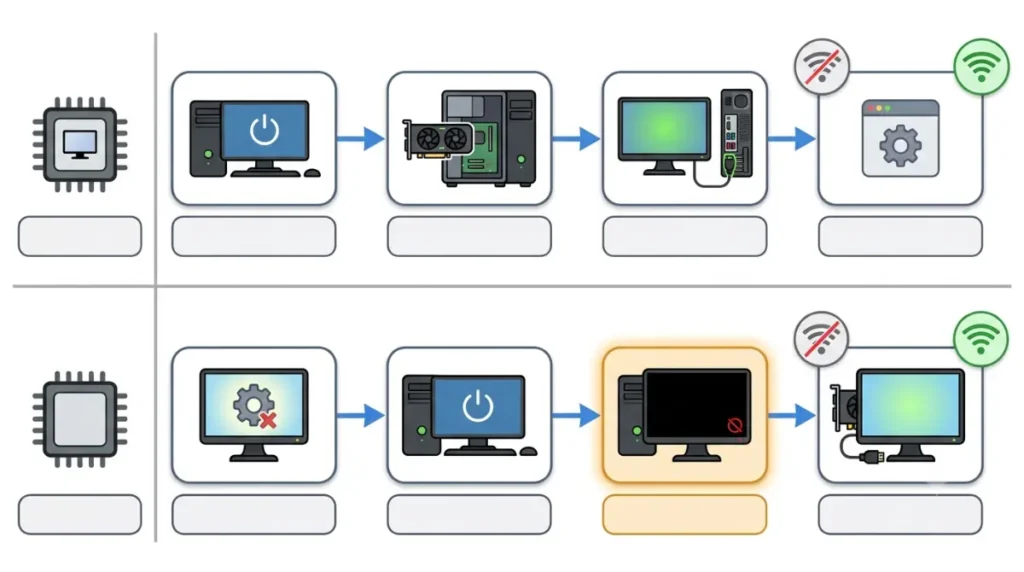
Intel desktop processors with an F in the suffix need a separate graphics card and won’t boot from the motherboard’s video port; Intel’s examples include the Core i9-12900KF and Core i7-10700F, both from earlier generations (Intel support). With one of those, the screen goes dark the moment the old card leaves its slot and stays dark until the replacement is seated. Every step in the table’s middle column has to happen before you shut down.
A processor with its own graphics keeps a picture on the motherboard ports while no card is installed. Some desktops turn board video off once they detect a card, which is why the monitor belongs on the card’s ports after the swap.
AMD lists integrated graphics as a Graphics Model entry on each processor’s spec page; the previous-generation Ryzen 7 7700 shows AMD Radeon Graphics there.
Save two things before you shut down
BitLocker is the part of this job that can lock you out of your own files. Dell documents BitLocker recovery prompts at boot on PCs whose graphics card loads its own UEFI driver during startup, because those PCs fall back from PCR 7 binding to PCR 0, 2, 4 and 11 (Dell support). Microsoft gives the same fallback for boot code signed with anything other than its Windows certificate, and names option ROMs among what the third-party certificate can sign (Microsoft Learn).
Neither page says a card change will or won’t bring up the recovery screen on your PC. Microsoft support can’t retrieve or recreate a lost key (find your BitLocker recovery key).
Back up first: on another device, open aka.ms/myrecoverykey, sign in with the Microsoft account used on this PC and confirm its key is listed, or confirm BitLocker is off for the system drive. If you can’t find the key, leave the old card where it is.
Save the replacement’s driver installer to this PC as well. The DDU guide has you get the new driver before removing anything, and it goes on later with the internet off.
AMD, NVIDIA and Intel uninstall routes
Leaving a brand is the main job here; NVIDIA and Arc owners keeping the same brand can skip to the swap. Display Driver Uninstaller (DDU), a third-party tool, is the fallback Intel names in its clean-install article (Intel support). DDU’s release notes say to disconnect the internet or block Windows Update from the moment it runs until the new card’s driver is installed, and not to reach for it on routine updates (DDU release notes).
Leaving AMD
Open Installed apps in Windows Settings, select AMD Software, choose Uninstall and restart when the uninstaller asks (AMD support).
Conflicts that survive a normal uninstall go to AMD’s Cleanup Utility. AMD recommends Safe Mode for it, and it leaves AMD chipset drivers untouched. Before removing anything, it creates a System Restore point you can roll back to; it needs a reboot to finish and quits if Windows Update is running.
NVIDIA drivers in Device Manager
Right-click the NVIDIA card under Display adapters, choose Uninstall device, tick the box to delete the driver software, then select Uninstall and restart (Microsoft support).
Leaving Intel Arc
Intel’s manual route also starts from Device Manager, at the Intel Graphics entry (Intel support). Its DDU walkthrough begins with a reboot into Safe Mode.
Swap the cards with the power cord out
AMD’s removal guide sets this order for the hardware (AMD support):
- Turn off the PC and every device connected to it.
- Wait 20 seconds, then unplug every cable from the back, power cord included.
- Open the case as its manual describes, and wear an antistatic wrist strap connected to a grounded object.
- Unplug the card’s power connectors.
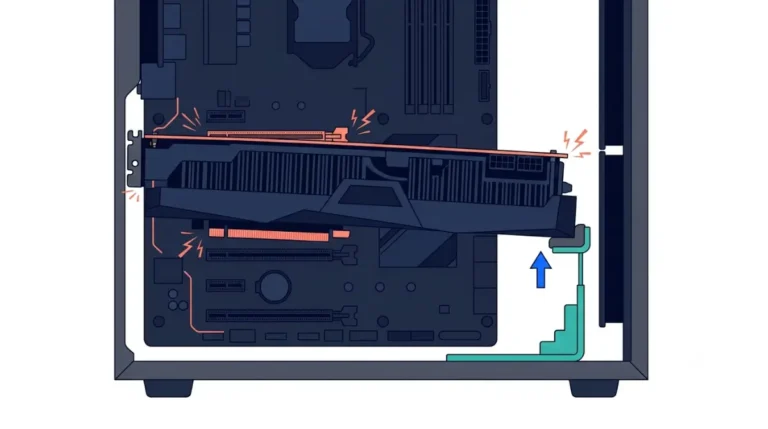
- Take out the bracket screws or clip holding the card to the case, then pull the slot lever to release it.
- Slide the card out and put it in an antistatic bag.
Seating the replacement and connecting its power cables are the same as a first install, covered in how to install a GPU, from slot to monitor.
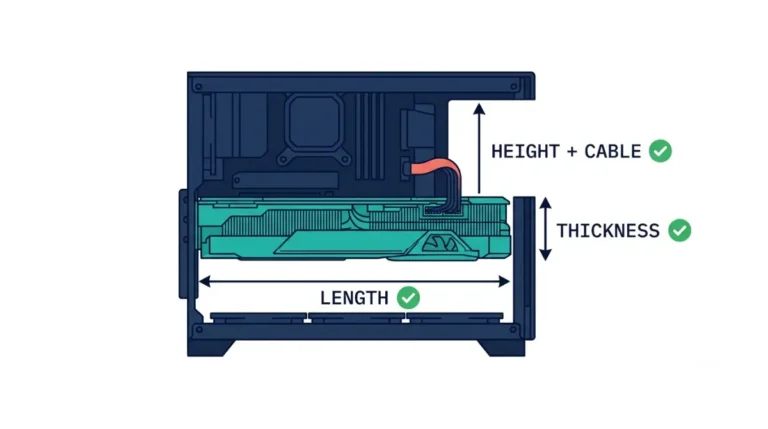
Before you buy: check the card against the slot, case and power supply you already have with GPU compatibility for the PC you already have, and compare your PSU with each maker’s recommended wattage for its cards.
First driver install on the new card
Windows Update running in the background is one reason NVIDIA gives for failed driver installs (NVIDIA support). Intel’s Arc installer troubleshooting says to disconnect from the internet so Windows Update can’t put a driver on first (Intel support).
Keep the PC offline and run the saved installer as administrator (right-click it, then Run as administrator). NVIDIA’s steps also say to close GPU monitoring tools such as MSI Afterburner and Corsair iCUE first.
AMD’s installer needs its card in the PC: Error 173 means it found no AMD graphics hardware (AMD support). With Factory Reset ticked, it restarts the PC partway and carries on after the reboot (AMD support).
When it finishes, expand Display adapters in Device Manager and look for the card’s model name. Reconnect to the internet once it’s there.
Black screen or Basic Display Adapter after the swap
The monitor cable is the first thing to look at, and the checks run from there toward the card itself:
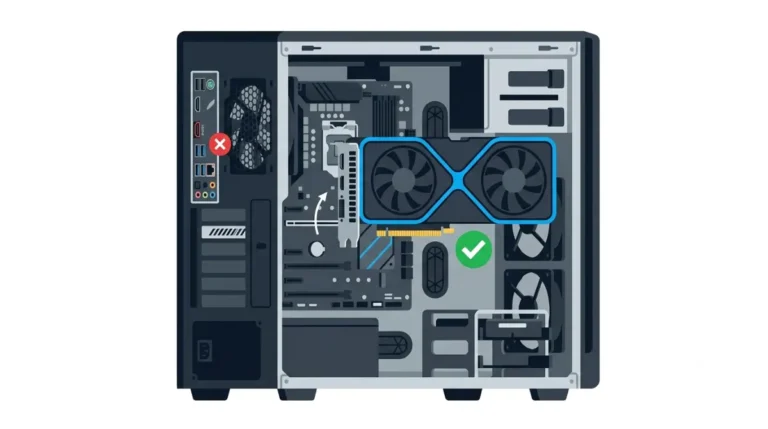
- No picture at all: move the monitor cable from the motherboard to the card. An F-series Intel processor can’t drive the board ports.
- BitLocker recovery screen: type the recovery key from aka.ms/myrecoverykey to unlock the drive.
- Device Manager shows Microsoft Basic Display Adapter instead of the card’s model: go offline and run the vendor installer again.
- The AMD installer stops with Error 1604: earlier AMD software didn’t uninstall cleanly (AMD support). Run the Cleanup Utility, restart and install again.
- The card isn’t listed under Display adapters even after a reseat with the power cord out: contact the card maker’s support with its model number and what Device Manager shows.
A dead card or slot is where self-help ends.
Do I need to reinstall Windows to change a graphics card?
No. None of the AMD, NVIDIA, Intel or Microsoft pages linked above call for it, and Intel lists a clean Windows 11 installation only as the last resort in its Arc installer troubleshooting, after the other fixes have failed (Intel support).
Turn on Resizable BAR for the new card
Once Device Manager shows the replacement by name, Resizable BAR is the BIOS setting to check next. Turning on Resizable BAR in the BIOS covers where the option sits.