
Get Motherboard Compatibility Right Before You Order
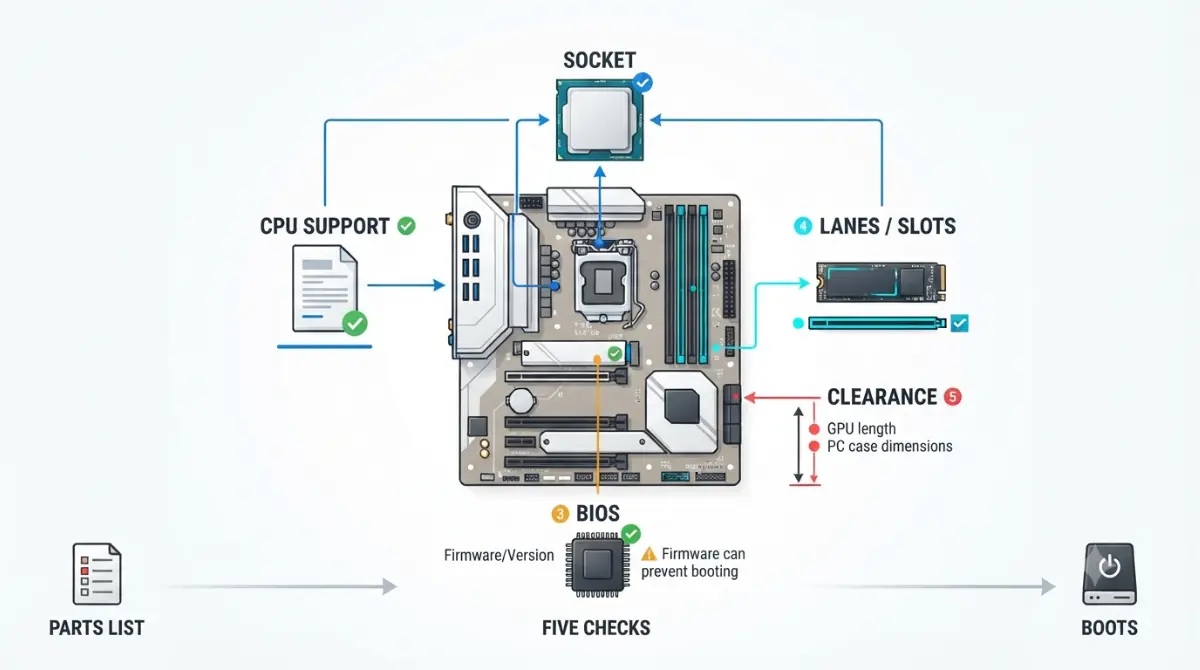
Table of Contents
Five checks stand between your parts list and a PC that boots
Motherboard compatibility is not one question. It is five separate checks, each answered by a different document, and skipping any one of them is how people end up with a part that does not fit, does not boot, or quietly disables something else.
Where you are right now decides which section matters most.
- Building for the first time, all-new parts: start with the socket check below, then jump to clearance. Your highest risk is a board that ships with firmware older than your CPU.
- Dropping a new CPU into a board you already own: the CPU support list and BIOS version sections are the ones that will save you money. Go there second.
- You got a warning that an M.2 slot “shares bandwidth” with a SATA port: skip to the lane-sharing section. That message is normal, and it is explainable.
- Your PC will not POST after a swap: go to the troubleshooting order at the end. Work it top to bottom.
- Deciding which platform to buy this month: the socket longevity section has changed more in 2026 than in the previous three years combined.
A compatibility check is worth ten minutes before you order. It is worth several hundred dollars after.
ℹ️ Risk Note: Flashing a BIOS can permanently disable a motherboard if it is interrupted or uses the wrong file for your board’s exact model and revision. Use only your board manufacturer’s file and their documented method, and contact their support if any step is unclear.
The five checks that decide whether your parts work
Run these in order. Each one is answered by a specific document, and four of the five can only be answered by a document about your exact board model.
- Socket match — does the CPU physically fit the board?
- CPU support list — is your exact CPU listed for your exact board revision?
- BIOS version — does the board’s current firmware recognise that CPU?
- Lane and slot sharing — does using one slot disable another?
- Physical clearance — do the cooler, graphics card, and radiator fit the case?
The Five-Check Compatibility Ledger
| Check | What fails if you skip it | Where the answer lives | Can an automated checker see it? |
|---|---|---|---|
| Socket | CPU physically will not seat | CPU spec page + board spec page | Yes |
| CPU support list | CPU seats but is not validated for that board revision | Board’s CPU support list, filtered by revision | Partly — not per revision |
| BIOS version | System will not POST at all | Support list’s validated-BIOS column + BIOS release notes | No — it cannot see the BIOS your board shipped with |
| Lane / slot sharing | A SATA port or M.2 slot silently disappears | Board manual’s storage-sharing table | No |
| Clearance | Cooler or card physically will not fit the case | Cooler, card, and case spec pages | Partly — not with a radiator fitted |
Source: manufacturer specification pages, board CPU support lists, and board manuals. Checker limitations per published compatibility-tool scope, September 2026.
What an automated compatibility checker can and cannot see
Parts-list checkers are genuinely useful, and they are right about the things they can see. They resolve socket type, memory generation, board form factor, wattage totals, and published length and height limits.
They cannot see the firmware version physically on the board in the box you receive. They cannot see whether your memory kit appears on that board’s qualified vendor list, or whether the cooler still clears the RAM once a front radiator is installed.
🧩 Compatibility Check: Treat a green checkmark from any parts-list tool as having cleared checks 1 and 5 only. Checks 2, 3, and 4 still need the board’s own support list and manual, because those documents are the only place those answers exist.
Find your CPU support list — and your board revision
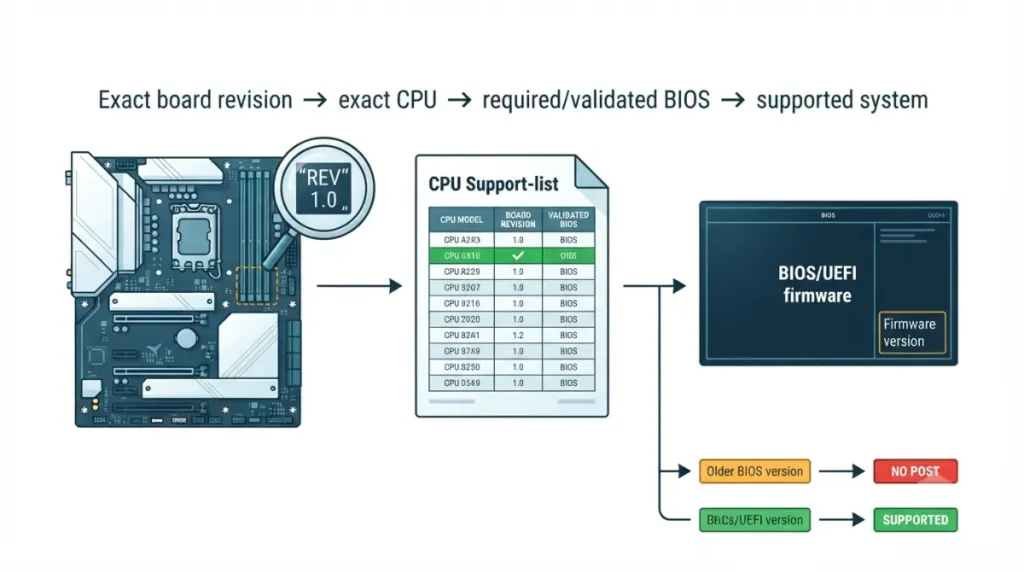
A CPU support list is the board maker’s own record of which processors that board has been validated with, and which firmware version each one needs. It is the single most useful document in this entire process, and most readers never open it.
Finding your exact board model and revision
The model name is silkscreened on the board itself, usually between the CPU socket and the RAM slots, and printed on the retail box. Look immediately after it for a revision marker such as Rev 1.0 or v1.1.
Revision matters because vendors publish revision-specific CPU lists and firmware files. The same model name at two revisions can have different validated processors and different BIOS downloads.
Reading the validated-BIOS column
Support lists are tables. One column names the processor; another names the firmware version that first validated it, usually labelled something like “Validated BIOS” or “Since BIOS.”
That second column is the answer to check 3. If the version listed there is newer than the firmware on your board, the CPU will not run until the board is updated.
✅ Do This: Open your board’s CPU support list, filter to your revision, and find your exact processor model. Note the validated BIOS version before you order anything.
Does your new CPU need a BIOS update first?
Only if you are pairing a newer processor with an older board of the same socket. New boards built after a CPU launches generally ship with firmware that already supports it, but a board manufactured months before your purchase may not.
Checking the firmware version you have
Your current BIOS version appears in the UEFI setup screen itself, usually on the first page, and in Windows under System Information. Compare that string against the validated-BIOS column from your support list.
If the board does not POST at all, you cannot read it this way — which is the situation the next section covers.
When a board can update without a CPU installed
Some boards can rewrite their own firmware with no processor, memory, or graphics card installed, using a dedicated rear USB port and a button. Vendors name the feature differently: Gigabyte calls it Q-Flash Plus, ASUS calls it USB BIOS Flashback, MSI calls it the Flash BIOS Button, and ASRock calls it BIOS Flashback.
This is the escape from the circular problem where the board needs an update to boot your CPU, but needs to boot to be updated. It only works on boards that carry the dedicated hardware feature; clearing CMOS, removing the battery, or connecting power alone does not enable it on boards that lack it.
⚠️ Watch Out: Not every AM5 or LGA1851 board has this feature, and assuming yours does is a common and expensive mistake. Confirm it appears in your board’s own specification sheet, usually under special features, before you buy a CPU that needs newer firmware than the board shipped with. If it is absent, the retailer or the board maker’s support channel is your route — not a flash attempt.
The trap nobody mentions: updates that drop older CPU support
Firmware lives on a physical chip with finite space. Boards with smaller 32MB BIOS chips have already run into space constraints supporting older CPUs, which is why buyers planning an upgrade should know which board revision they own.
The practical consequence: a newer firmware release can remove validation for a processor an older release supported. If you plan to move a CPU between boards, or keep an older chip as a spare, read the release notes rather than assuming newer is always safer.
🔍 Why It Works: Firmware has to carry microcode for every processor it supports. As a socket accumulates generations, that data outgrows a small chip, and vendors choose which processors to keep. Nothing is wrong with the board — it simply ran out of room.
Lane sharing: why a SATA drive can vanish
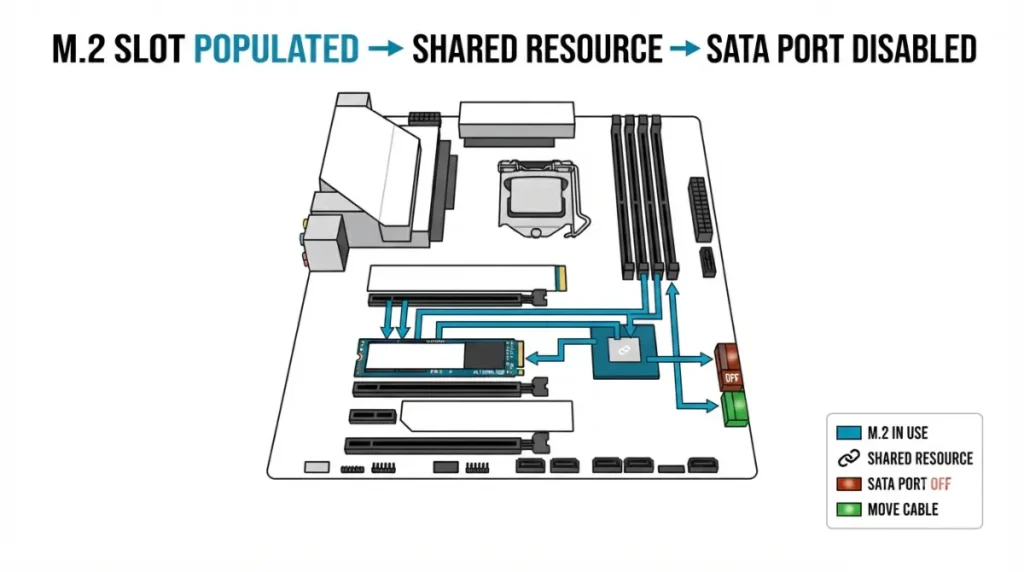
If a parts-list tool told you an M.2 slot “shares bandwidth” with a SATA port, nothing is broken. It is telling you that populating that slot will switch off a specific port on that specific board.
What “shares bandwidth” actually means
A PCIe lane is a physical data path between a component and either the processor or the chipset. There is a fixed number of them, and boards expose more slots and ports than there are lanes to feed simultaneously.
Most chipsets do not have enough lanes to enable a board’s full feature set at once, so when four lanes are needed for an M.2 drive, part of a SATA controller is switched off in its place. Boards commonly disable one or two SATA ports when a specific M.2 slot is populated, share bandwidth between certain M.2 slots and PCIe slots, or run a secondary PCIe slot at fewer lanes when several slots are in use.
Where sharing is written in your manual
Every board manual contains a storage-sharing table, usually on the same page as the M.2 and SATA connector diagrams. It lists each M.2 socket against the SATA ports it deactivates.
Read the port numbering carefully. Manuals frequently label a pair of ports in compressed form such as SATA3_5_6, which means ports five and six — a formatting convention that regularly gets misread as a single port.
The three patterns worth looking for
- M.2 disables specific SATA ports. The most common pattern. The fix is to move the SATA cable to an unshared port.
- M.2 slot type is restricted. Some slots accept NVMe only, some accept M.2 SATA only, and a drive in the wrong slot simply will not be detected.
- Secondary slots drop lane counts. Adding a card to a lower PCIe slot can reduce lanes elsewhere, which is where bifurcation settings come in. ASUS documents this behaviour for its expansion cards in its PCIe bifurcation compatibility notes .
💡 Pro Tip: Decide which M.2 slot each drive goes in before you build, not after. Moving a boot drive later means reinstalling or recloning; moving a SATA cable takes thirty seconds.
🧩 Compatibility Check: Open your board manual to the storage-sharing table and write down, for each M.2 slot, which SATA ports it disables. If you are running three or more SATA drives alongside NVMe, that table decides your slot assignment.
Memory, cooler height, and card clearance
These are the checks people skip because they feel obvious, and they are where September 2026 punishes you hardest.
Memory: generation, QVL, and one kit
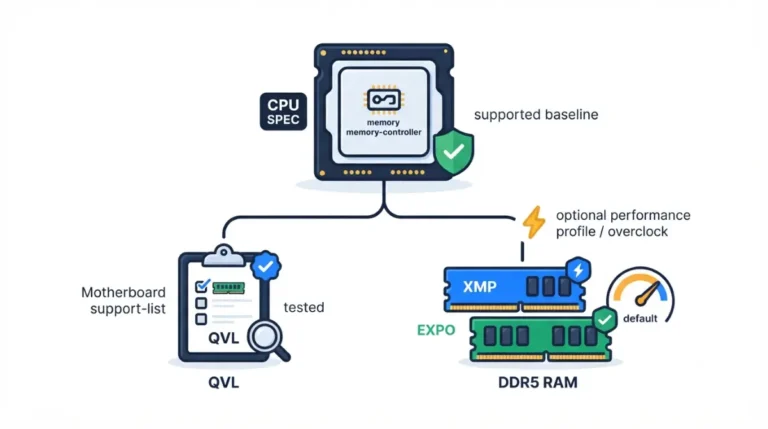
Match the memory generation the board accepts — DDR5 boards do not accept DDR4 modules, and the notch position prevents installation. Then check the board’s qualified vendor list for kits validated at your intended speed.
Buy one matched kit rather than combining two. Mixing kits is a common cause of a board failing to train memory and refusing to POST.
📊 Spec Check: A 32GB DDR5-6000 kit that sold for roughly $90 in summer 2025 was selling for $375 to $400 by early September 2026, per Tom’s Hardware’s ongoing RAM price index. Prices as of September 2026 and moving weekly — verify before ordering.
That price movement has a second-order effect on compatibility: Micron wound down its consumer-facing Crucial brand in February 2026, so kits that appear on older QVL entries may no longer be purchasable.
Clearance: three numbers, three spec pages
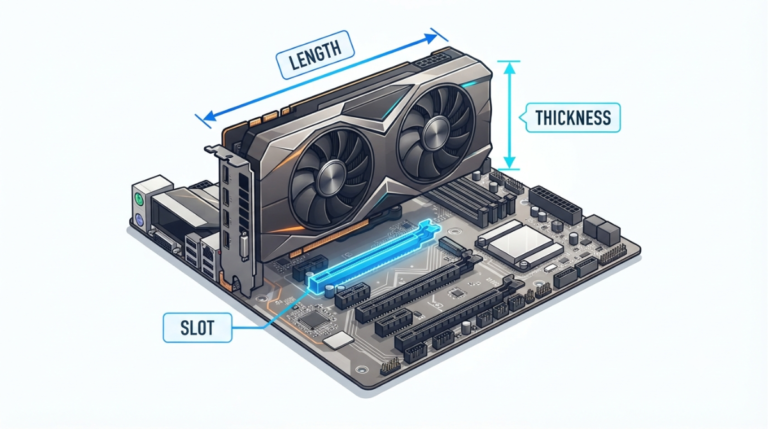
Compare cooler height against the case’s maximum CPU cooler height. Compare graphics card length against the case’s maximum GPU length. Compare radiator thickness plus fans against the case’s front or top clearance.
All three numbers are published by the manufacturers. None of them accounts for what happens when two of the three are installed at once, which is the gap that catches small-form-factor builds.
AM5 or LGA1851: what the sockets look like right now
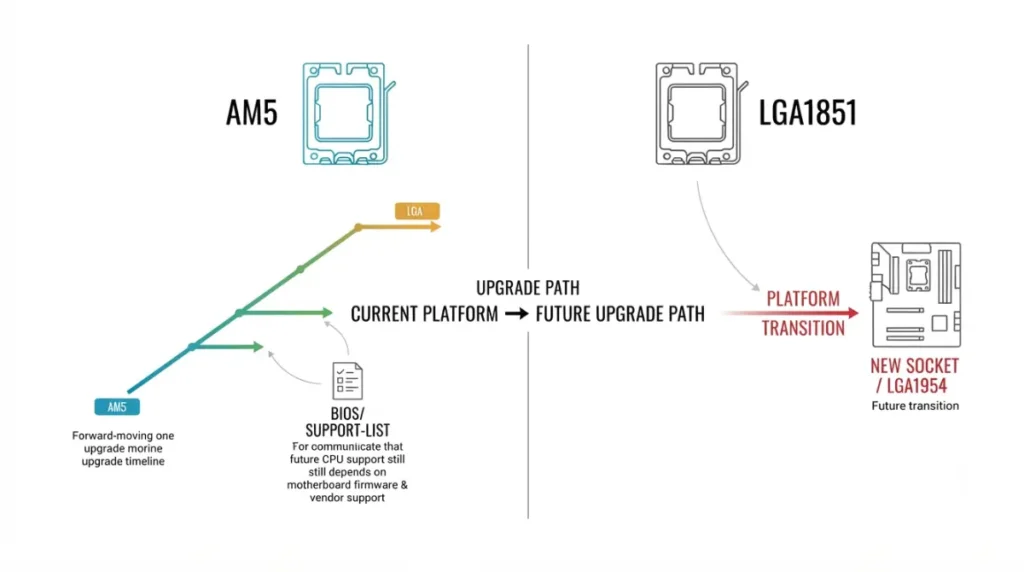
This section changed more in 2026 than anything else on this page, and it is currently the difference between a board you can upgrade and a board you cannot.
What AMD has committed to
AMD confirmed at Computex 2026 that Socket AM5 will be supported through 2029, and its technical documentation page now lists the upcoming Ryzen 10000 “Olympic Ridge” Zen 6 desktop processors as AM5-compatible. This does not yet confirm individual models or that any specific existing board will run them — support still depends on board vendors shipping BIOS updates.
Existing AM5 boards already demonstrate the pattern. Previous-generation X670E, X670, B650E and B650 boards still run Ryzen 9000 after a BIOS update.
What Intel is doing with LGA1954
Intel is building its next-generation Nova Lake-S desktop processors around a new Socket LGA1954 that replaces the current LGA1851. Intel first publicly linked Nova Lake-S to LGA1954 through a listing on its own Design-In Tools store in August 2026. Current listings place the socket and its 900-series chipsets at Q1 2027.
Coolers may carry across. LGA1954 is expected to keep the same physical dimensions as LGA1851 and LGA1700, which would leave most existing coolers compatible — reported, not yet confirmed by a shipping product.
The socket longevity picture
| Socket | Current desktop CPUs | Stated future support | Key detail for buyers |
|---|---|---|---|
| AM5 | Ryzen 7000 / 8000 / 9000 | Committed through 2029; Zen 6 “Olympic Ridge” listed as AM5 | Existing boards typically need only a BIOS update |
| LGA1851 | Arrow Lake and Arrow Lake Refresh | Being replaced by LGA1954 | A CPU upgrade beyond this generation means a new board |
| LGA1954 | None shipping yet | Nova Lake and reportedly beyond | Listed for Q1 2027; nothing to buy today |
Source: AMD technical documentation and Computex 2026 platform statement; Intel Design-In Tools listing and published chipset reporting.
The practical reading: if an upgrade path matters to you and you are buying this month, AM5 is the socket with a documented future. If you are buying a complete system you do not intend to change, the socket roadmap matters far less than getting checks 1 through 5 right.
Your PC will not POST after a CPU swap
A black screen after a processor change is common, and it is usually one of a small number of things. Work down this list rather than across it.
Check in this order
- Firmware first. If the board predates the CPU, it will not POST regardless of what else is correct. Re-check the validated-BIOS version against your support list.
- Power connectors. Both the 24-pin and the EPS 8-pin CPU connector must be fully seated. A half-clicked EPS connector produces exactly this symptom.
- Memory. Reseat one stick in the slot your manual names for single-module operation. Boards fail to train memory far more often than they fail outright.
- Socket and cooler. Confirm the cooler is mounted evenly and the socket retention arm is fully closed.
- Display output. If the processor has no integrated graphics, the monitor must be connected to the graphics card, not the board.
What the debug indicator is telling you
Most current boards have either a four-LED cluster labelled CPU, DRAM, VGA and BOOT, or a two-digit code display. The LED that stays lit names the stage the board stopped at.
Your manual carries the code table. A persistent CPU light on a board with older firmware points straight back to step one.
Frequently asked questions
1. Is the socket the same as the chipset?
No. The socket is the physical connector the CPU sits in; the chipset is a separate controller that determines lane allocation and feature support.
2. Do I need a BIOS update for a new CPU?
Only when pairing a newer CPU with an older board of the same socket. Check the validated-BIOS column on your board’s CPU support list.
3. Can I update the BIOS without a CPU installed?
Only on boards with the dedicated flash feature, named Q-Flash Plus, USB BIOS Flashback, Flash BIOS Button, or BIOS Flashback depending on vendor. Confirm it on your board’s specification sheet, and use only the manufacturer’s file and method.
4. What does “M.2 slot shares bandwidth with a SATA port” mean?
Populating that M.2 slot switches off a specific SATA port on that board, because the chipset lacks lanes to run both simultaneously.
5. Why did my SATA drive disappear after installing an M.2 SSD?
That M.2 slot shares resources with the port your drive was plugged into. Move the SATA cable to an unshared port listed in your manual.
6. Can a BIOS update remove support for an older CPU?
Yes. Firmware chips have finite space, and boards with smaller 32MB chips have hit constraints supporting older processors. Read release notes before updating.
7. Will Ryzen 10000 work on my current AM5 board?
AMD lists Olympic Ridge as AM5-compatible, but individual board support still depends on your vendor shipping a BIOS update.
8. Is AM5 or LGA1851 the better socket to buy right now?
AM5 has committed support through 2029. LGA1851 is being replaced by LGA1954, so it offers no further CPU upgrade path.
What to do next
If you are still at the cart, you are in the best possible position — every one of these checks is cheap before you order and expensive afterwards. If you are staring at a board that will not POST, start at firmware and work down; that order resolves most cases.
Three places to go next in this cluster: the chipset comparison guide for choosing between tiers on your chosen socket, the M.2 slot selection guide for deciding which drive goes where, and the no-POST troubleshooting walkthrough for working a failed first boot systematically.
5 Comments