Steam Machine HDMI 2.1: which TVs get 4K 120Hz and VRR

A Steam Machine on HDMI keeps VRR now, but 4K 144Hz waits on a SteamOS update Valve hasn’t dated. Your TV’s input and one setting decide the rest.

Table of Contents
Any TV with an HDMI input works with the Steam Machine, and a TV with a 4K 120Hz input gets 4K at 120Hz with HDR over HDMI on the current SteamOS. Variable refresh rate (VRR) works as well if the TV supports FreeSync or HDMI Forum VRR, though at 4K 120Hz the picture carries reduced color detail because the port still signals at HDMI 2.0 speed.
Valve’s Steam Machine tech specs list that port as HDMI 2.0. A Valve representative told Ars Technica the hardware itself supports HDMI 2.1, with the software still catching up (Windows Central’s report). What your TV receives comes down to the input you plug into and one setting on it. The box’s other ports and limits are in the Steam Machine specs, upgrades and limits overview.
What the Steam Machine’s HDMI port sends today
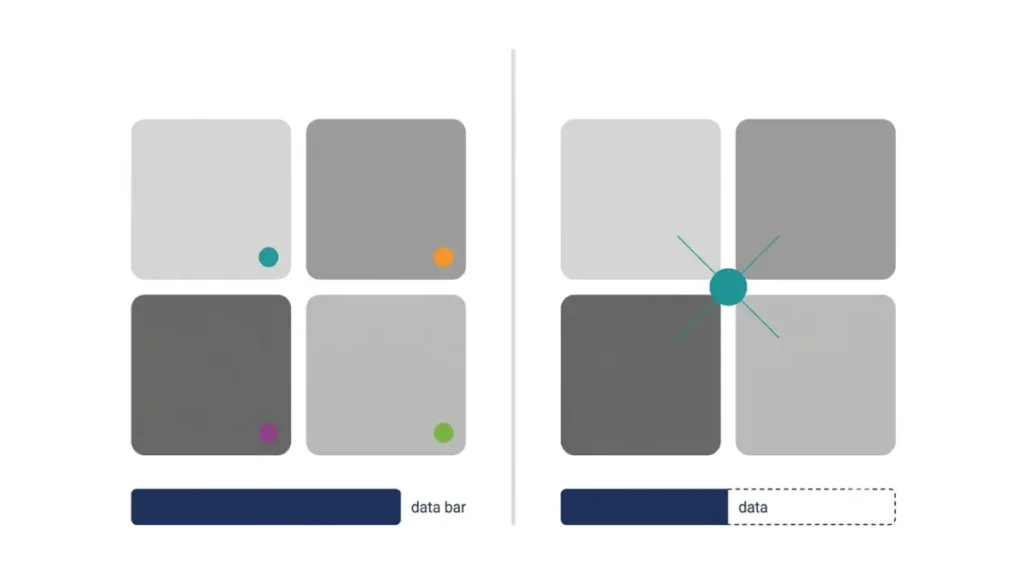
Valve’s spec sheet promises 4K at 120Hz over HDMI with HDR, FreeSync and CEC, plus up to 4K 240Hz or 8K 60Hz over DisplayPort 1.4. The software has moved on since that sheet was written, so the table sets the two side by side.
| Feature | Valve spec sheet | SteamOS 3.9.5 |
|---|---|---|
| HDMI version | HDMI 2.0 | HDMI 2.0 signaling on HDMI 2.1-capable hardware |
| 4K refresh over HDMI | Up to 120Hz | 120Hz |
| Color at 4K 120Hz | Not listed | 4:2:0, 8-bit |
| VRR over HDMI | FreeSync | FreeSync and HDMI Forum VRR |
| HDR and CEC | Supported | No change reported |
| HDMI 2.1 fast link (FRL) | Not listed | In the system, switched off |
Sources: Valve’s Steam Machine tech specs; Valve’s statements to Digital Foundry as reported by VideoCardz and PC Games Hardware; SteamOS 3.9.5 release notes; an owner’s filing on Valve’s SteamOS issue tracker, as covered by MIXED.
The color row is the one to watch on a TV. 4:2:0 color keeps every pixel’s brightness but stores color at a quarter of the resolution (HDanywhere’s HDMI 2.0 explainer), so fine color detail is softer than at full 4:4:4.
HDMI 2.0 fits 4K 120Hz only with reduced color
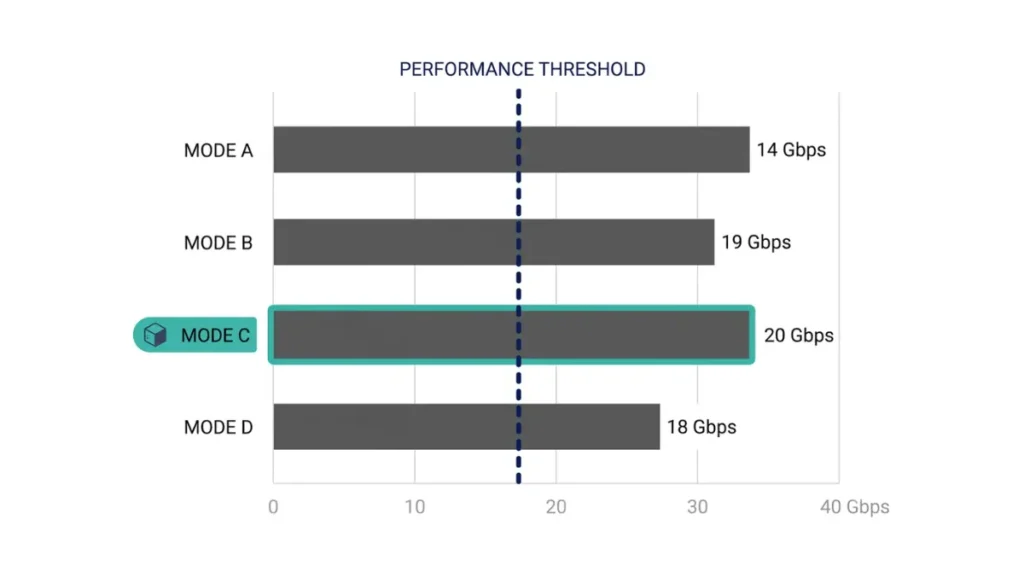
18 Gbps is the most an HDMI 2.0 link carries, set by a 600 MHz clock ceiling (Gamers Nexus). The standard 4K timing counts 4,400 by 2,250 pixels once blanking is included. At 60Hz that is a 594 MHz pixel clock and 17.82 Gbps at 8-bit color (Synopsys HDMI 2.0 white paper). Doubling the refresh rate doubles both.
| 4K mode | Pixel clock | Link rate needed | Fits HDMI 2.0 |
|---|---|---|---|
| 60Hz, 4:4:4, 8-bit | 594 MHz | 17.82 Gbps | Yes |
| 120Hz, 4:4:4, 8-bit | 1,188 MHz | 35.64 Gbps | No |
| 120Hz, 4:2:0, 8-bit | 1,188 MHz | 17.82 Gbps | Yes |
| 120Hz, 4:2:0, 10-bit | 1,188 MHz | 22.28 Gbps | No |
Calculated from the 4K timing in Synopsys’s HDMI 2.0 white paper: link rate equals pixel clock × 3 data channels × 10 bits per 8-bit symbol, halved for 4:2:0 and multiplied by 1.25 for 10-bit color.
Only one 4K 120Hz row fits under 18 Gbps, and it is the one the Steam Machine uses. MIXED reports, from that owner’s filing, that the stock HDMI path stops at 4K 120Hz in 4:2:0 at 8 bits, which matches the arithmetic. At 4K 60Hz the link has room for full 4:4:4 color.
VRR on TVs with FreeSync or HDMI Forum VRR
When Valve first explained the HDMI 2.0 listing, VRR over this port meant AMD FreeSync only, and TVs that advertise HDMI VRR without FreeSync got no VRR at all (VideoCardz). That changed. Valve’s SteamOS architect Pierre-Loup Griffais later told Digital Foundry that the current software has HDMI 2.1 VRR working on FreeSync displays and on HDMI Forum VRR displays (VideoCardz, PC Games Hardware).
The current stable release, SteamOS 3.9.5, also fixed the Disable Frame Limiter toggle, which had stopped working with VRR on (release notes).
Your TV’s spec page settles its side. Look for “HDMI Forum VRR”, “HDMI VRR” or “FreeSync” in its gaming features. A TV that lists none of them has no VRR to offer over HDMI.
Does your TV have a 4K 120Hz HDMI port?
Turn the TV around and read the labels on its HDMI inputs. On many 4K sets only some inputs take 4K 120Hz; Sony’s setup article for its 4K 120Hz models names HDMI 3 and HDMI 4 (Sony support). The model’s manual or spec page confirms which inputs carry it.
Then switch on that input’s high-bandwidth setting. TVs keep it per input, and the source won’t see the TV’s 4K 120Hz capability until it is on (Sony support):
- Samsung: Settings > General > External Device Manager > Input Signal Plus (shown as UHD HDMI Color on some models), then choose the input (Samsung support)
- LG: HDMI Ultra HD Deep Color, set to On for the input after the device is connected (LG support)
- Sony: Settings > Watching TV > External inputs > HDMI signal format > Enhanced format, not the Dolby Vision version (Sony support)
Connect the Steam Machine straight to that input where you can. Avoid putting an HDMI hub, splitter or receiver between a Deep Color source and the TV (LG support).
Today’s 4K 120Hz mode stays under 18 Gbps. If you are buying a cable anyway, the Ultra High Speed HDMI Cable is the one certified for HDMI 2.1’s 48 Gbps modes, and its certification label can be scanned with the HDMI Cable Certification app (HDMI Licensing Administrator).
A DisplayPort adapter trades VRR for bandwidth
DisplayPort is the route Valve itself pointed owners to: the DisplayPort 1.4 output plus an HDMI 2.1 adapter (PC Games). Valve rates that output for up to 4K 240Hz, so an active DisplayPort-to-HDMI 2.1 adapter can hand a TV more bandwidth than the HDMI port does today. PC Games noted that HDMI 2.1 VRR is missing on that route.
Before you buy: an adapter only makes sense if your TV has no VRR at all and you want the extra bandwidth. On a FreeSync or HDMI Forum VRR TV, the direct HDMI port now keeps VRR.
The opt-in 4K 144Hz mode in SteamOS 3.9
Reports of 4K 144Hz from a Steam Machine trace back to one owner who switched on the HDMI 2.1 fast link (FRL) already inside SteamOS 3.9. Valve ships that link off by default, behind a kernel boot option, so a stock machine never uses it (MIXED).
With it on, the owner’s filing shows an LG OLED83C4 accepting a 144Hz 4K signal in 10-bit 4:4:4 color, HDR included. The cost shows up in the same filing. The TV’s VRR range drops to zero on that link, and after the TV wakes from standby or switches inputs, the connection falls back to the slower mode until a reboot. PC Games Hardware describes the same VRR loss (PC Games Hardware). Valve had not answered the issue when MIXED covered it.
Valve’s own plan is a SteamOS update that turns FRL on for 4K 144Hz without compression and 4K 240Hz with Display Stream Compression, with no date given (VideoCardz).
Stop if: a guide tells you to add kernel boot options to reach 4K 144Hz. Valve ships that mode switched off, and the only public report of it shows VRR lost. Wait for the SteamOS update, and take questions about it to Steam Support.
Pick 120Hz in SteamOS after the TV setting is on
TV first, Steam Machine second:
- Turn on the high-bandwidth setting for the TV’s 4K 120Hz input.
- Connect the Steam Machine to that input and power it on.
- In SteamOS, open Settings > Display, choose 3840 x 2160 at 120Hz, and switch on VRR and HDR where the toggles appear. Valve has placed both toggles in Display Settings for external displays since SteamOS 3.5 (SteamOS 3.5 release notes).
A blank screen after choosing 120Hz sends you to the Steam Machine no-display checks. Whether games will run near 120 frames per second at 4K is a GPU question, covered in which desktop card the Steam Machine’s GPU matches. Installing Windows puts a different display driver behind the HDMI port, and the Steam Machine Windows 11 limits page covers that setup.
Found this helpful? See more of our guides on Google.
Want to see our guides first on Google?